Course evaluations are integrated within Canvas for both faculty and students. When you have a course section that is part of your evaluation process, this page has information to help you ensure it goes smoothly.
Information to share with your students
These directions are for the SURF enrolled students within your course.
Students can access the course evaluation within Canvas, or through an email sent to them from MiraCosta’s course evaluation survey administrator. Provide the link below to your students to help them with the evaluation process in Canvas.
Advise students to contact the ITS Help Desk if they need assistance with course evaluations. The phone # is (760)795-6850.
*Note for Instructors: The Student Course Evaluations menu item will NOT work with your Faculty Canvas Sample Student account, or the Instructor’s Student View in Canvas, as those accounts are not SURF enrolled users within your course.
Information for faculty
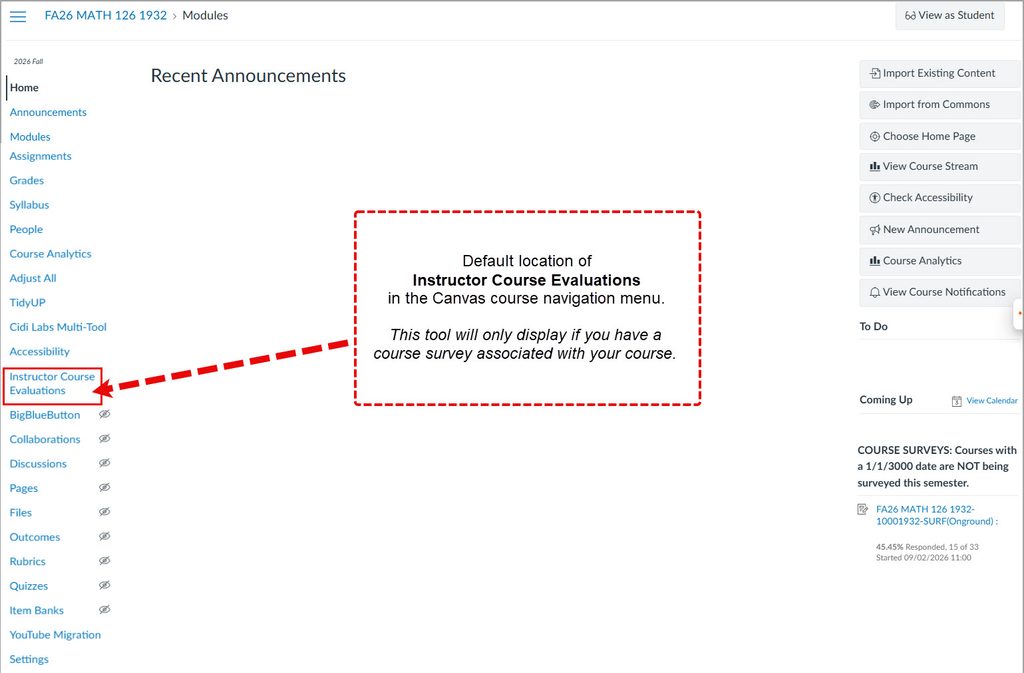
As an instructor, you can view your course evaluation surveys from the course navigation menu or from the To Do list within your course. It is important to have the Course Evaluation course menu navigation tool available in Canvas in order to show the ‘Instructor Course Evaluations’ navigation menu item. Even if this tool is available in Settings > Navigation, this tool will only show up in your course if there is a course survey associated with your course.
If you modified your course navigation menu, you may have hidden the Course Evaluations menu navigation tool. If you are being evaluated, you must enable the Course Evaluation menu navigation tool so that you will see the navigation menu item ‘Instructor Course Evaluations‘, and your students will see the ‘Student Course Evaluations‘ navigation menu item.
Instructor Navigation Menu
If you have not made any changes to your course navigation menu, this is the default location for the Course Evaluation course surveys. Remember, this tool will only display if you have a course survey associated with your course. The navigation menu item is displayed as ‘Instructor Course Evaluations‘ in the instructor view.
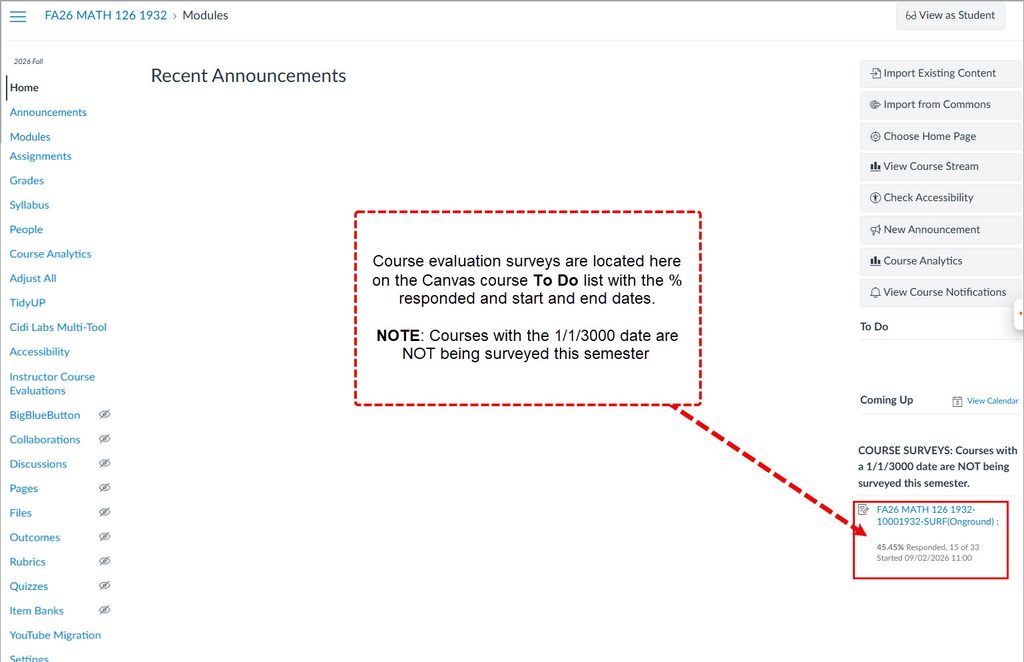
Instructor To Do List
On the To Do list within a Canvas course, you can also view your course evaluation survey. In this area you can view the percentage of students who have responded, as well as the start and end date of your course evaluation survey.
NOTE: Courses with a 1/1/3000 date on the Course Evaluation Survey are NOT being evaluated in the current semester.
Enabling the Course Evaluations navigation menu tool
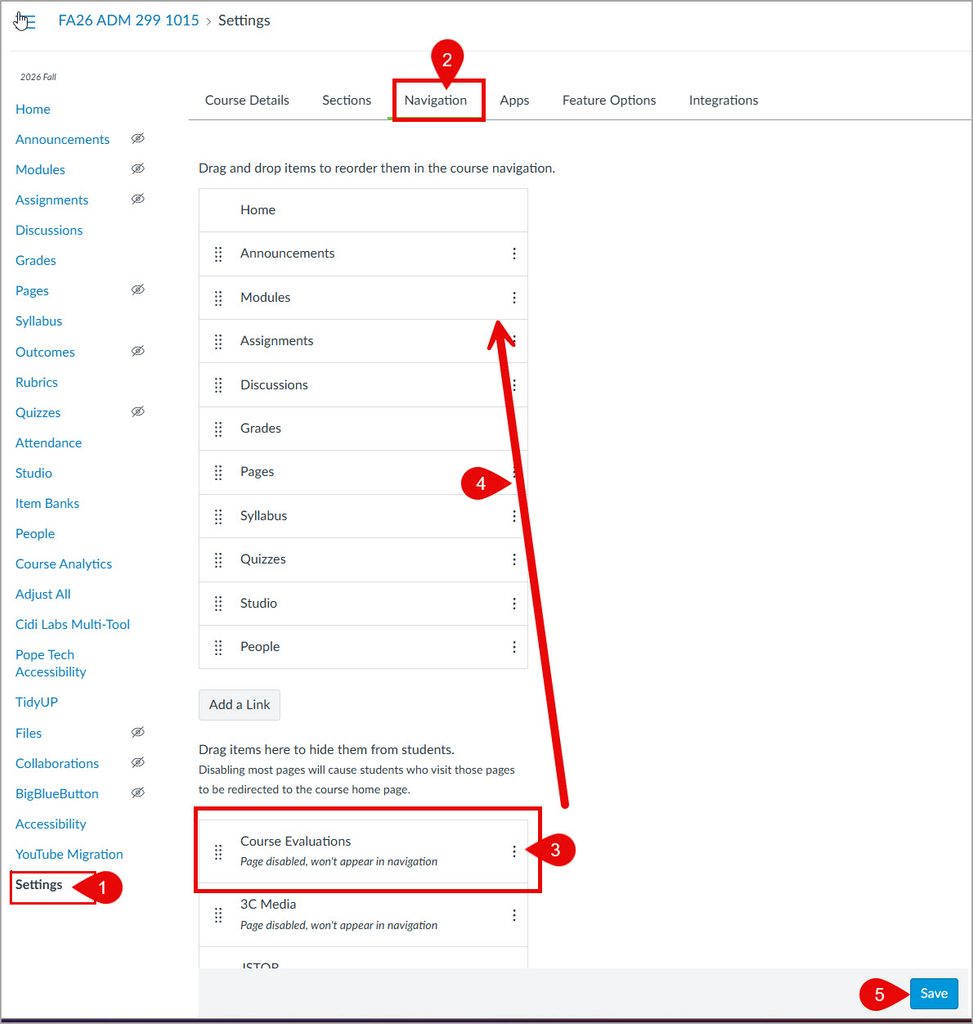
If you edited your Canvas course navigation menu, and your course is being evaluated, you may need to add the Course Evaluations navigation tool back to your Canvas course. This is necessary so that you and your students will be able to access your course evaluations in the Canvas course navigation menu.
Click on Settings. You will find this as the last option on your course navigation menu.
Click the Navigation tab.
Find the Course Evaluations option in the bottom list of hidden navigation items.
Drag Course Evaluationsfrom the bottom list to the top list of available items.
Click the Save button
Questions about course evaluations
For questions about student surveys and/or the Course Evaluations & Surveys system, associate faculty should contact their school’s Academic Division Administrative Assistant. Full-time faculty should contact human resources at [email protected]
If you are having a computer specific issue with a MCC computer contact the campus ITS Help Desk at (760) 795-6850.
The following will help instructors understand how the end of semester is handled in Canvas, and how to update related Canvas course settings if necessary. By default, students who complete a class continue to have read-only access to the concluded class’s course materials, discussions, and grades. If you wish to restrict concluded class access, you must change the class settings before the end of the term, or get a Canvas administrator to help you after the end of the term.
Everything below applies to typical term-based Canvas classes. Canvas sandbox classes and Canvas shells used for organizations, departments, groups, etc. are not tied to any particular terms and thus remain available indefinitely.
Closing your Course
There is nothing you have to do to close your Canvas course; at the term end date (see below), your course will be set to Concluded status and moved onto the Past Enrollments course list for you and your students. By default you and your students will continue to have read-only access to the course.
Canvas Term End Dates
Semester
Date
Time
Spring 2026
June 8
12 am
Summer 2026
August 12
12 am
Fall 2026
Dec 31
12 am
Concluded Course Access
For both instructors and students, concluded courses can be found by clicking Courses in the main Canvas menu, then the All Courses link. Concluded courses are listed there under Past Enrollments. Concluded courses may notbe moved back onto the Dashboard – they must be accessed in this way.
Instructorscan perform the following actions with a concluded course
Access material using visible navigation links (any links that were hidden from students will be hidden in concluded courses)
Instructorscannot perform the following actions within a concluded course (do these before the end of the term!)
Edit course content
Edit Grades
View/download Analytics
View/download Item Analysis within Quizzes
Send a message to the class within Canvas
Change class access settings
Change class navigation
Studentscan perform the following actions by default within a concluded course
View Grades
View course content
View Discussions and Assignments
Send a message to the instructor
Students cannot perform the following actions within a concluded course
View Quiz questions and answers
Submit discussions, assignments, quizzes, and other course activities
Restricting Students from Viewing Some or All of a Completed Course
As described above, by default in Canvas, students have ongoing read-only access to course content in Canvas after the term ends. This can be a great feature, allowing students to review key learning resources from previous semesters. If, however, you wish to limit this access, follow one of the methods below before the end of the term. (If you need to make these changes to a course that is already concluded, contact Karen Turpin for assistance at [email protected])
Method 1: Hide Course Navigation menu links
If an instructor would like to limit access to major areas of course content, one method is to hide Navigation menu links. Note that if Navigation menu links are hidden, the instructor will also be unable to access them after the course concludes. This may be appropriate if you would like to leave Grades available to students, yet close off certain course content. The instructor may copy the course into another course to regain access to hidden menu items.
How to hide Course Navigation menu links
Click Settings in the Canvas course menu
Click Navigation in the tabs at the top.
Drag and drop the menu items from the top (viewable) area to the bottom (hidden) area or click the gear icon to the right of the menu item and select disable.
Click the Save button.
Method 2: Hide select course content
For more fine-grained control, certain course content such as files, pages, modules, or module items (but not assignments or discussions where students have participated) may be unpublished. As with hidden Navigation menu links, unpublished items are also inaccessible to the instructor after the course concludes.
If you wish to hide course items where students have participated, such as discussions or assignments, you cannot unpublish those. But there is a trick: simply set the availability date to sometime far in the future.
These options may be useful if you want students to be able to access most course content, but have select content that you prefer not to be accessed/shared in the future. The instructor may copy the course into a current course to be able to revisit/reuse hidden content.
Method 3: Restrict students from accessing entire course after term end date
The term end date is the final date in the current semester as listed in the table above. If an instructor would prefer the entire course and its course materials not be visible to students after the term end date:
Click Settings in the Canvas course menu.
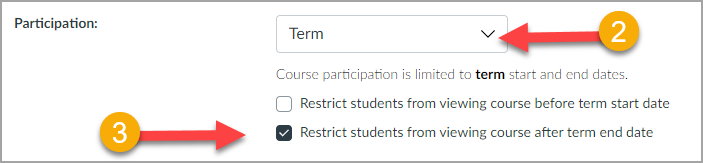
For Participation: Select Term (this should be selected by default)
3. Select the checkbox for ‘Restrict students from viewing course after term end date‘.
5. Click the Update Course Details button at the bottom of the settings page.
This option will completely remove the course from the student’s view in Past Enrollments after the end term date passes. Students will not see the course and will have no access to course materials or grades. Instructors will continue to be able to access the course in Past Enrollments.
Resolving Incompletes
If you have assigned a student an incomplete ‘I‘ grade for the semester, contact Karen Turpin at [email protected] or as soon as the paperwork is complete with Admissions and Records. Karen will create a new Canvas course section based on the original course. This new section will allow the student access to the course with the ability to submit work, and will give you access to grade the student’s work, for the time allowable by the Office of Admissions and Records.
Working with Concluded Courses to Build New Courses
As noted above, you may always export a concluded course for import back into Canvas (Text instructions), or use a concluded course as the source for copying into a new course (Text instructions). If you wish to update the content of a concluded course for use in the future, but you do not have a current term course in which to do that, you may wish to request a Sandbox course to copy into and work with, since you cannot edit a concluded course directly.
Teaching a short course and/or need to close your course prior to the official term end date?
You can manually end your course by updating the course end date. This will disable the ability for students to submit any more work, and, if you select the setting enabling students to view the course after the end date, will move the course off of the students’ Canvas dashboard and into the Past Enrollments area. If you do not enable that access for students, the course will disappear from their Canvas altogether.
To change the Course Start and/or End Date
Click Settings in the Canvas course menu.
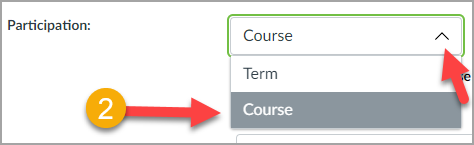
2. For Participation: Select Course
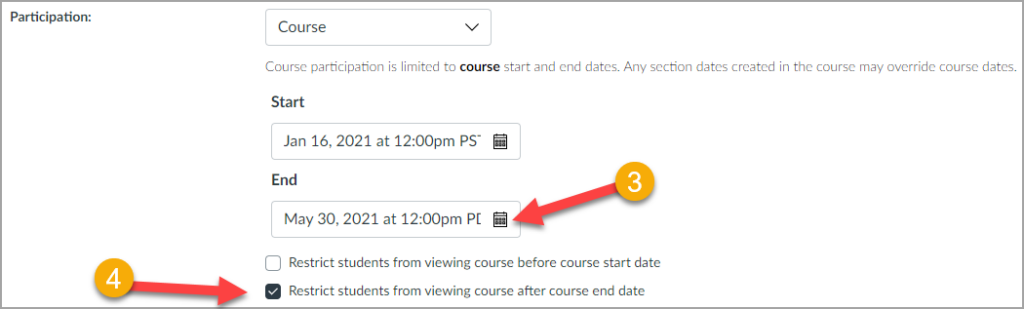
3. Change the Course Start and End Dates to reflect when you want students to have full access to the course.
4. If desired, select the checkboxes for ‘Restrict students from viewing course before course start date’ and/or ‘Restrict students from viewing course after the course end date’.
In the example below, students will not be able to participate in the course, even if it is published, until Jan 16 at 12 pm. The students will no longer be able to participate in the course after May 30 at 12 pm and the course will not be available to students for viewing.
TidyUP is available within a Canvas course to help quickly identify and clean up course content. Identifying and deleting extra files, folders, pages, or assignments that are no longer in use will make your course easier to manage and more usable for everyone.
Note: TidyUp does not identify files that are being used in Question Banks
Enable the TidyUp tool in a Canvas course
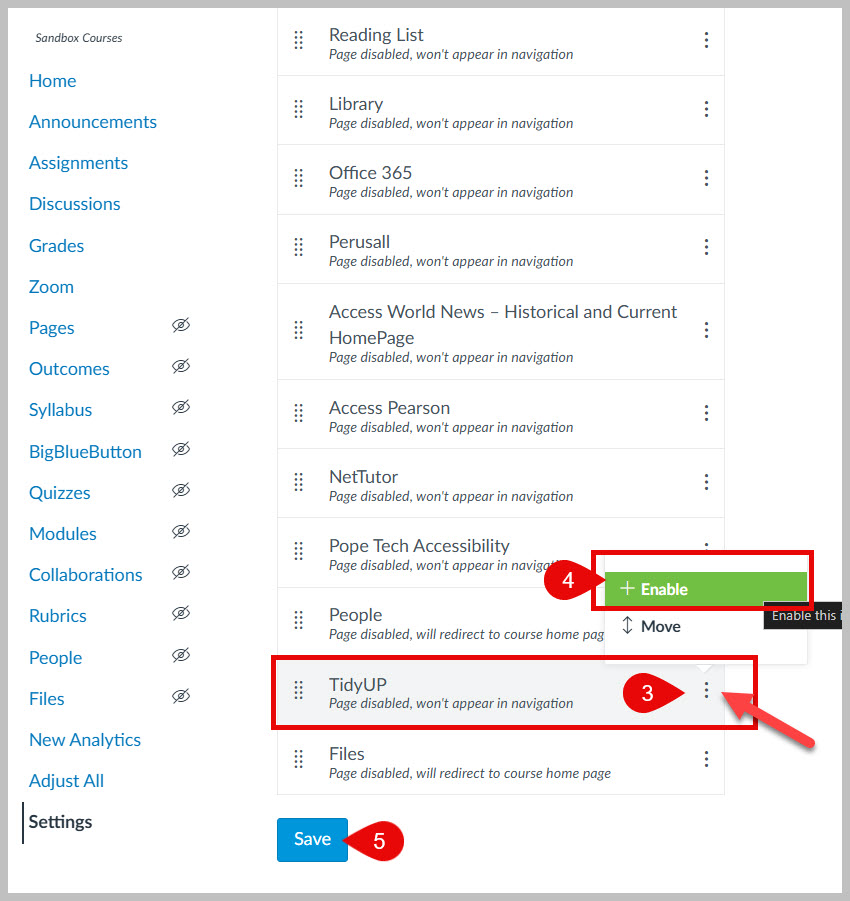
Start within your Canvas course, click on Settings at the bottom of the course navigation menu.
Click on the Navigation tab.
3. Click on the 3 dots to the right of TidyUp.
4. Select + Enable.
5. Click Save.
The TidyUP tool will now be available on your course navigation menu near the bottom of the list.
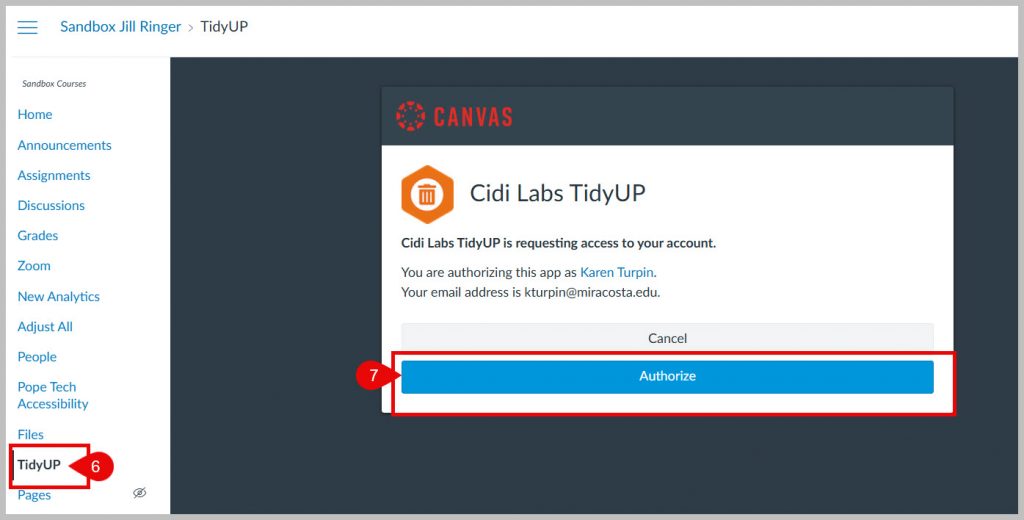
6. Click the TidyUP link.
7. Click the Authorize button the first time you launch the tool.
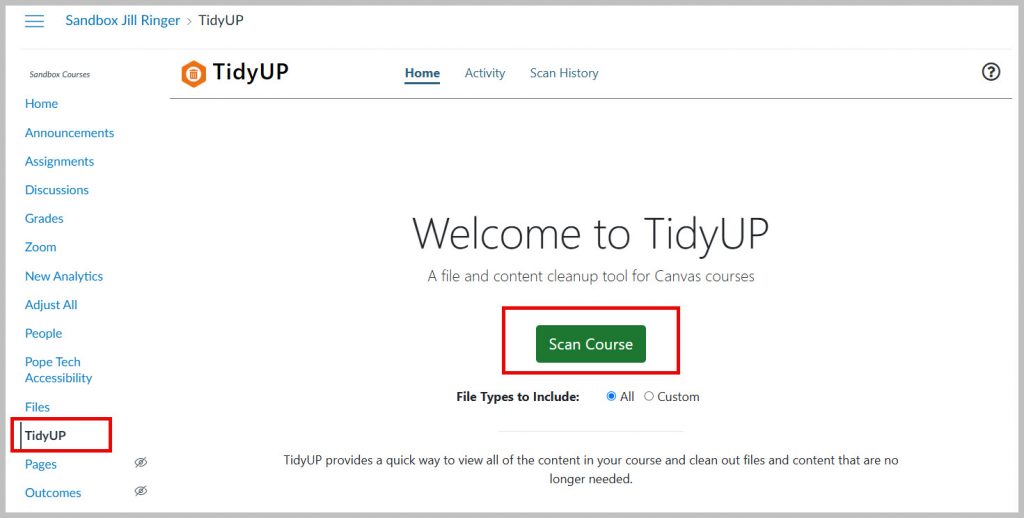
You are now ready to use the TidyUp tool. Click the Scan Course button to get started.
DesignPLUS is a user-friendly Canvas plug-in that helps you build polished, engaging, and accessible courses efficiently. DesignPLUS is licensed for all faculty at MiraCosta College using Canvas.
DesignPLUS includes four primary tools:
Sidebar – a suite of rich content editor tools that help you create organized, accessible, engaging, and visually polished content in Canvas with ease.
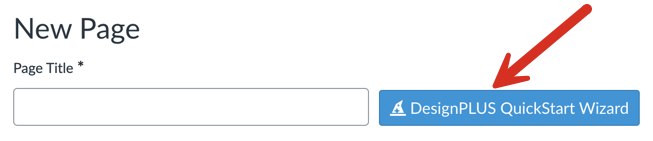
QuickStart Wizard – design tools available when you are editing new content in Canvas (a new page, assignment, discussion, etc) to quickly add visual design elements or adopt existing templates.
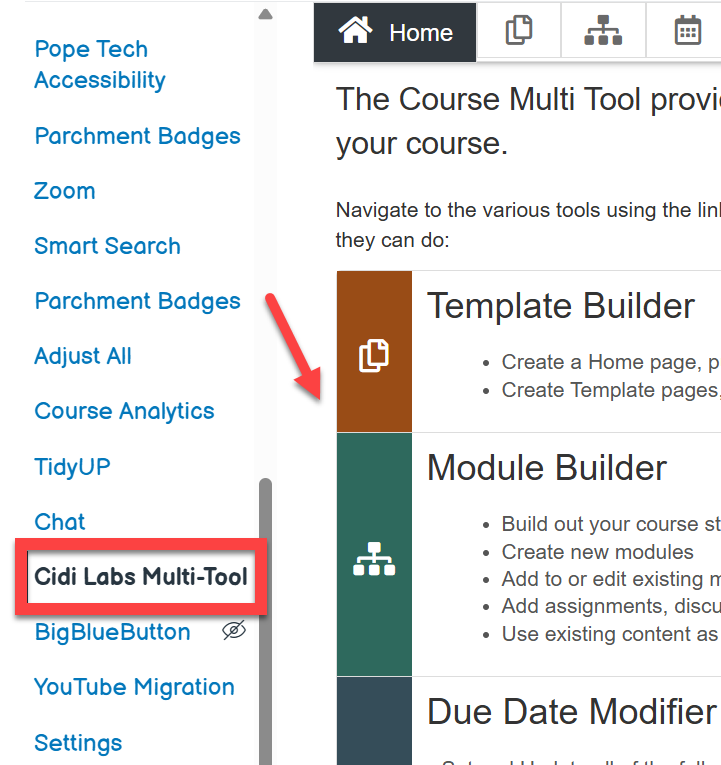
Cidi Labs Multi-Tool – a time-saving tool that lets you quickly set up an engaging home page and create accessible templates for reuse across Canvas. It also can help you quickly build repeatable, consistent module structures. You can also adjust due dates and delay announcements using this tool.
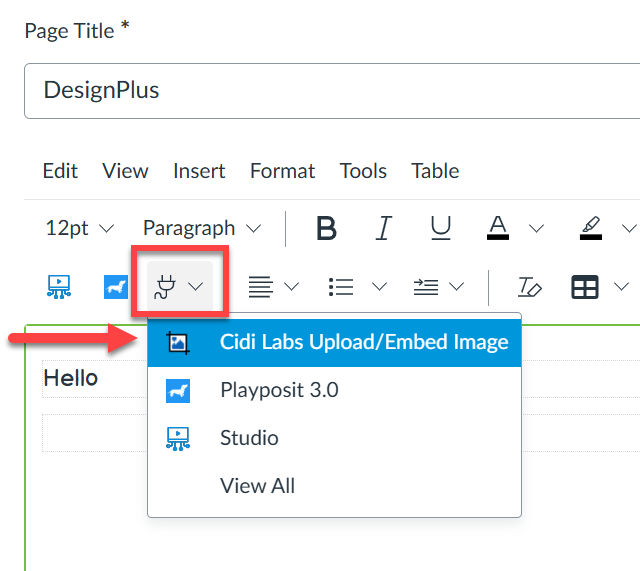
Upload/Embed Image Tool – a tool that enables you to discover, add, edit, and place course images in Canvas
DesignPLUS Sidebar
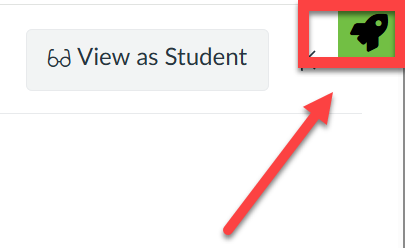
When you are editing Canvas content, select the sidebar icon at top right to launch the Sidebar tool, which will then appear on the right. The Sidebar tool includes many enhancements to the Rich Content Editor in Canvas, enabling you to easily add a variety of attractive and engaging content elements.
Getting Started with the Sidebar
Learn more about the DesignPLUS Sidebar (Tap to open a list of resources).
The QuickStart Wizard button appears when you open a new page, assignment, or syllabus for editing. Activating the Wizard gives you access to templates for the entire page, or pre-defined content blocks of different types to help you customize the page.
Getting Started with the QuickStart Wizard
Cidi Labs Multi-Tool
The Cidi Labs Multi-Tool shows up in the left course navigation menu of your Canvas course. You will be asked to authorize Cidi Labs to access your Canvas account. Once the Multi-Tool is set up, you can select from a variety of tools to help rapidly develop and update your courses. Watch the Multi-Tool orientation video to learn more about what it can do for you.
This tool enables you to manage course images directly in Canvas. Upload, crop, resize, and embed images anywhere in your course, or quickly add free, high-quality images from Pexels and Unsplash. To access the Upload/Embed Image (U/EI) tool, go to apps through the Rich Content Editor (RCE). The first time you access the tool, you will be asked to authorize Cidilabs to access Canvas so this tool is available for you. Watch the Upload/Embed Image orientation video to learn how this tool works.
Visit the Canvas Release Notes/Upcoming Changes page within the Canvas Community. This page is updated by Instructure and is the central location for communicating all Canvas’s significant upcoming changes. Check the Canvas System Status Updates for real time updates about existing features within Canvas.