
Downloading Zoom Recordings and more….

Beginning October 2, 2025, all Zoom recordings created between 2017 and July 31, 2024, will be automatically deleted in accordance with the California Community Colleges Chancellor’s Office directive. It is advised to download all Zoom recordings that you would like to keep prior to this date and hosting those Zoom recordings on an alternate media server.

Step 1: Download the Zoom recording files.

View a webinar by Jill Ringer that will walk you through the Zoom download process.

View a handout on how to download Zoom recordings.

Step 2: Upload your Zoom recording files to a streaming media service.

Canvas Studio

This option is integrated directly in Canvas. At this time we do not have any storage limits so this is the most ideal and probably easiest place to store your Zoom recordings. For future zoom recordings you can even have those recordings automatically upload to Canvas Studio.

Canvas Studio

Here are some guides that will walk you through the process of uploading video files & using Canvas Studio.

Zoom Connection to Canvas Studio

Canvas Studio supports an integration with Zoom that allows Zoom to automatically upload future recorded meetings into Studio. Here is how you can authorize the Studio Zoom integration in your Canvas Studio Settings.

Zoom Video Migration FAQs

How do I ensure that the video captions also migrate?

If downloading the video to your computer and saving it to One Drive, make sure to also save the .cc.vtt file and add it to the MP4 file.

Canvas Studio generates auto captions to all Zoom videos uploaded to its library. Be sure to review the captions for accuracy.

Who do I contact if I need help?

Got questions?

Contact the following:

ITS Helpdesk: (760) 795-6850

Jill Ringer from ITS: jringer@miracosta.edu

Karen Turpin: kturpin@miracosta.edu

Nadia Khan: nkhan@miracosta.edu
Zoom: Getting Started, Getting Help, and Using Zoom with Canvas

Zoom Flex Workshop Recordings


Zoom Logo

Zoom provides a reliable, easy-to-use, mobile-friendly tool for live, recordable online presentations, meetings, and discussions with audio, video, chat, screen sharing, polling, and more. It can be used within Canvas or independently.

Zoom Pro is available to all MiraCosta faculty and staff at no charge. Students don’t use the Zoom Pro account but can use free Zoom basic accounts. Nobody at MiraCosta should be paying anything to use Zoom!

The version of Zoom that MiraCostans use changed after the fall 2020 semester; MiraCosta Zoom is now accessed at miracosta-edu.zoom.us rather than conferzoom.org or cccconfer.zoom.us. Faculty need to sign in to Zoom with their MiraCosta College login and password to obtain unlimited pro (“licensed”) access to all features of Zoom, including:

  • Unlimited meeting lengths and very large numbers of attendees
  • Recordings “in the cloud” so that you do not need to manage large files of your recorded meetings
  • Auto-transcription of your cloud-based Zoom recordings

This page includes basic technical how-to information and resources on using Zoom in general, and Zoom use in tandem with Canvas. Please see our separate Teaching with Zoom at MiraCosta College page for more detailed tips about teaching securely, effectively, and accessibly with Zoom.

Log On to Zoom at MiraCosta College

  1. To access your Zoom account via the web go to: https://miracosta-edu.zoom.us
    Sign in with your MiraCosta College employee account and two-factor authentication (2FA).
  2. To sign into Zoom app(s) on desktop and mobile:
    1. Open the installed Zoom app. (Download the latest Zoom apps from http://zoom.us/download )
    2. Select the ‘Sign in with SSO’ button or option at the app login screen
    3. Enter our ‘Company Domain’: miracosta-edu
    4. You will be directed to our MiraCosta login portal where you will enter your MiraCosta credentials.

MiraCosta Zoom Help and FAQS

  • Zoom help for MiraCosta faculty, staff, and students is through the ITS Help Desk
  • General MiraCosta Zoom account help and FAQs (You will need your MiraCosta credentials to access this).
  • How do I get a Zoom account? If you had a pro Zoom account through ConferZoom prior to 2021, it should have been automatically migrated to the MiraCosta Zoom, and there’s nothing you need to do. If you did not previously have a Pro Zoom account, and need to create a MiraCosta Zoom account, sign in to the MiraCosta Help Desk in the Portal and select the User Accounts option.
  • What if I’m having trouble with my Zoom account? Sign in to the MiraCosta Help Desk in the Portal and click the User Accounts button to request help.
  • What happened to my Zoom recordings made before 2021? They are still in your Zoom account! The old links to Zoom recordings will still work, but a message will briefly appear when people click an old link. If you update an old recording link with the new MiraCosta Zoom URL (replace cccconfer.zoom.us with miracosta-edu.zoom.us in the link) it will work seamlessly.
  • What happened to my recurring Zoom meetings I set up before 2021? Similar to your recordings, old links to recurring Zoom meetings will still work, but a message will appear when people click an old link. If you go to your Zoom account, you’ll see that your meetings have been migrated in, and you can get a new invitation. You can also simply update a meeting link created before 2021 with the new MiraCosta Zoom URL (replace cccconfer.zoom.us with miracosta-edu.zoom.us in the link).
  • What happened to Reports from Zoom meetings held before 2021? They are gone, sorry.
  • How much storage do I have for Zoom recordings? As of spring 2021, there is not a limit; however, this may change in the future if we do not manage our recordings well. Please delete recordings that you do not need.

Zoom Documentation

The following Zoom trainings, documentation, and resources can help you stay informed:

Using Zoom with Canvas

You can schedule and share Zoom meetings and recordings directly within Canvas, using the Zoom integration. To get started and learn more about the Zoom/Canvas integration, see directions below.

Note: You may also share individual Zoom meeting links and recordings in Canvas without using the integration.

Canvas Integration with Zoom

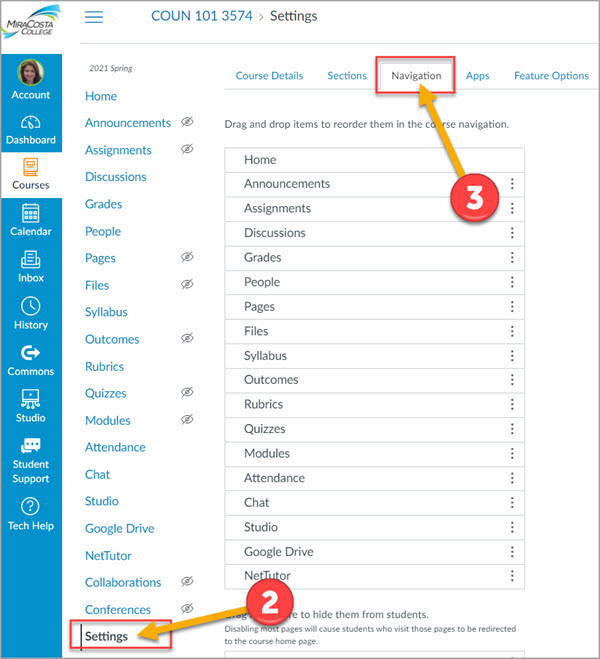
  1. Enter your Canvas course
  2. Click Settings on the course menu
  3. Click the Navigation tab
Step 2 and Step 3
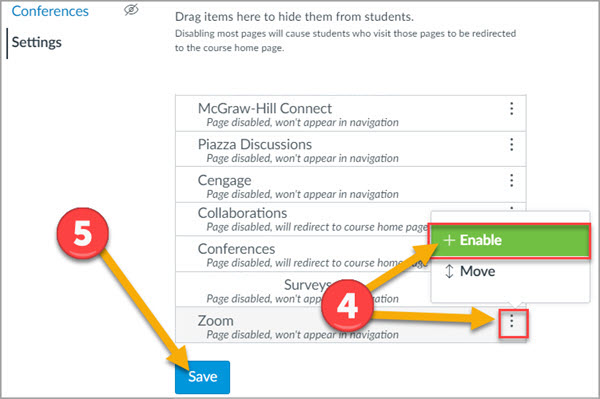
  1. Click the 3 dots to the right of Zoom and select Enable.
  2. Click the Save button
Step 4 and Step 5
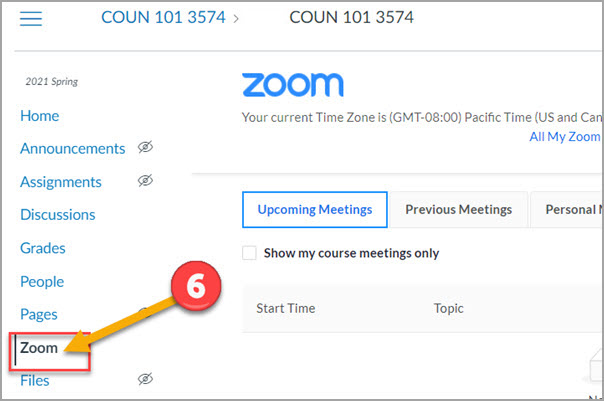
  1. Click the Zoom course menu item which will appear in your course menu.
Step 6

Now you can schedule and access Zoom meetings from inside of Canvas.

Viewing All My Zoom Meetings in Canvas

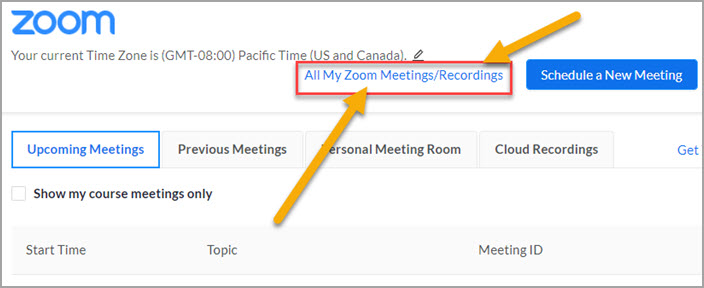
When you first enter Zoom on Canvas you will see only the Zoom meetings associated with the Canvas course you entered from. To see and access all Zoom meetings within your account, click the link ‘All My Zoom Meetings‘.

All My Zoom Meetings link in Canvas

Zoom LTI 1.3 upgrade for Spring 2024

The way that Zoom is integrated with Canvas was updated over the 2023-24 winter break to Zoom LTI 1.3. For all who share Zoom meetings and recordings within Canvas using the Zoom integration, you will need to re-enable the Zoom LTI menu option within your spring 2024 Canvas courses. If you have Zoom recordings, those are safely within your Zoom account and can be accessed once you re-enable the Zoom menu option within each Canvas course.

NOTE: Faculty have the option to share Zoom links to meetings and recordings directly in Canvas courses rather than using the Zoom LTI integration described below.

Enable the Canvas Zoom LTI 1.3 Integration & View Past Meetings/Recordings

  1. Enter your Canvas course
  2. Click Settings on the course menu
  3. Click the Navigation tab
  1. Click the 3 dots to the right of Zoom and select Enable.
  2. Click the Save button
Step 4 and 5

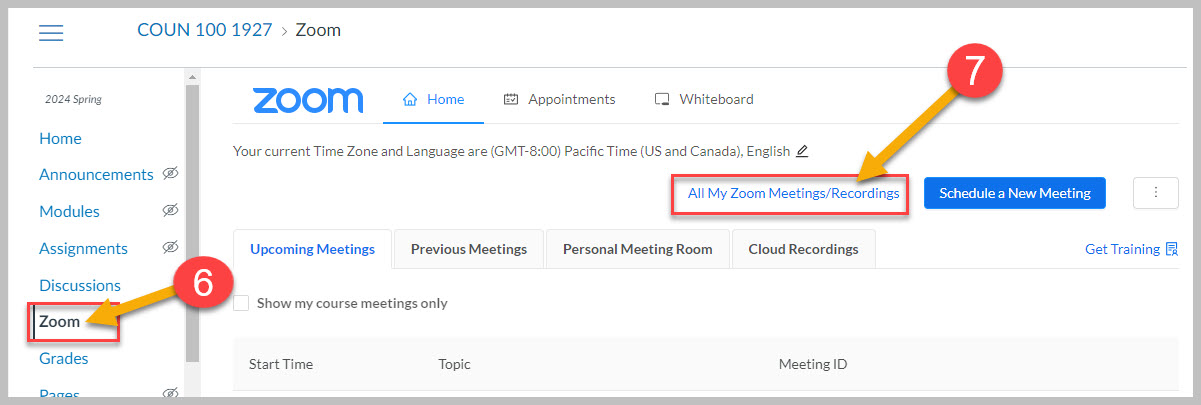
6. Click the Zoom course menu item which will appear in your course menu.

7. Click All My Zoom Meetings / Recordings to view all past course zoom meetings and recordings.

Step 6 and 7

Teaching with Zoom at MiraCosta College

Zoom Logo

This page provides guidance on teaching with Zoom, and assumes some basic familiarity with Zoom. Visit the Getting Started, Getting Help, and Using Zoom with Canvas page for details and technical information about getting started with Zoom at MiraCosta College, including how to set up integration of Zoom within Canvas.

Zoom Teaching Tips: Inclusion, Equity, Privacy, Security, and more

MiraCosta Zoom how-to videos from faculty

Please note that some of the following resources may refer to the version of Zoom that MiraCostans used in fall 2020 or earlier; MiraCosta Zoom is now hosted at https://miracosta-edu.zoom.us rather than https://conferzoom.org.

  • Teaching with Zoom (Fall 2020 workshop) – CSIT faculty member Rick Cassoni provides a 1-hour overview of Zoom, from the beginnings of signing up for a Zoom account, to recommended settings within your account and creation of meetings, to the basics of using Zoom for both live and recorded online instruction.
  • Connecting with Students in Zoom (Spring 2020 workshop) – Letters faculty member curry mitchell shares a few simple activities and methods for scaffolding an interactive, collaborative Zoom workshop with students.  curry also discusses flexible and compassionate practices–such as attendance policies and creating asynchronous means for participation–to ensure we’re using Zoom to help each other. (Note, this session included 10 minutes in breakout rooms but the recording was not paused, so you can skip from when that happens at around minute 39 ahead to minute 49 of the recording.)
  • Sharing your iPad screen on Zoom – Math faculty member Angela Beltran-Aguilar demonstrates in this short (under 3 minutes) video how to use an iPad as your sharing source for teaching with Zoom.
  • Capturing a separate screencast of a Zoom session – Psychology faculty member Robert Kelley demonstrates in this very short (under 2 minutes) video how to capture a portion of a Zoom session, excluding student participants, in order to be able to share the recording more widely without FERPA concerns.

Sending Zoom Recordings to Canvas Studio – Automatically!

Canvas Studio supports an integration with Zoom that allows Zoom to automatically upload recorded meetings into Studio. See the How do I authorize Zoom as a conferencing tool in Canvas Studio? guide to learn how to set this up!

Captioning for Zoom

  • Enabling Automated Real-Time Captions in Zoom – We now have access to automated captions inside our Zoom meetings – both live and recorded. While automated captions are a great resource for our students, they are not a replacement for professional captions when those are needed.
  • Zoom cloud recordings auto-transcribe and caption recorded Zoom sessions within a few hours (typically) of completion of the recording. Zoom’s interface makes it easy to fix up the captions so they are fully accurate.
  • If you have a student who requires professional live captions and you are using Zoom, please contact MiraCosta SAS.
    • You will need to make a one-time change in your Zoom account settings to enable live captioning, and at the start of each Zoom session with captioning, you will need to assign the captioning role to the proper person in your meeting. See directions for both.
1 2