This site explains the difference between the Canvas student view tool and MiraCosta College’s sample student account.
Canvas Student View
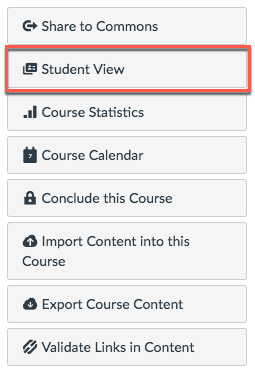
You can view a course the same way that your students view your course without logging out of your instructor account. Enabling Student View creates a ‘Test Student’ in your course. You can activate Student View in your Course Settings.
To see the student’s perspective on Canvas, use Student View to view the course, post and reply to discussions, submit assignments, view grades, view people, view pages, view the syllabus, view quizzes, view the calendar, and view the scheduler.
What Does Not Work in Canvas Student View
Attendance, conferences, conversations, collaborations, differentiated assignments, groups, LTI tools such as Pronto and Turnitin, peer reviews, and profiles do not work for the Test Student. Also, you will see only what you, as the instructor, allow your students to see.
Sample Student Account
At MiraCosta College all faculty have a separate sample student user added to their Canvas course. This is a separate account from your primary MCC faculty login account. The sample student account needs to be reset two times a year at the same time your employee password is reset.
With the sample student account all course content and tools that you have enabled for your students will work. This includes taking attendance, conferences, conversations, collaborations, differentiated assignments, groups, Pronto, LTI tools, Turnitin assignments, and peer reviews.
Reminder: You must publish your course and you must publish the course content or tool within Canvas before you can access it with your sample student account. Your sample student account has the same course permissions as your enrolled SURF students.
Sample Credentials
Add -student to the end of your MCC faculty login account. This will be your sample student account.
Example Log On: kturpin-student Password: Contact the ITS Help Desk at (760) 795-6850 for a password for first time users.
Substitute kturpin for your MCC faculty login and add -student
MiraCosta College has an unlimited license to Turnitin, GradeMark, and Peer Review, and Turnitin is available within Canvas. No separate login or password is required for faculty or students. You have two options for how to use Turnitin with Canvas.
The primary difference between the two is that the Turnitin LTI 1.3 integration is best used if faculty prefer to use Turnitin for grading and feedback; the Turnitin Plagiarism Framework is preferred by faculty who want Turnitin for plagiarism prevention but like to use the Canvas grading and feedback tools.
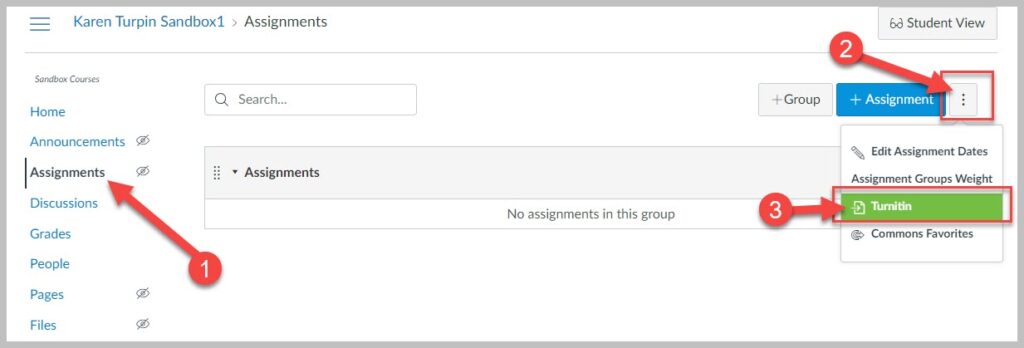
Create a Turnitin LTI 1.3 Assignment in MCC Canvas:
Click on Assignments from the course navigation menu.
Testing a Turnitin Assignment with your MCC Sample Student
Turnitin is an LTI tool that is globally installed on our Canvas system. LTI tools are not native to Canvas so they will not work in the internal Canvas Student View. You must log off of Canvas, as an instructor, then log on with your MCC Sample Student account. Now you will be able to experience a Turnitin assignment within your Canvas course as a student.
Turnitin Plagiarism Framework is available within Canvas and offers a tighter integration between a Canvas assignment and Turnitin than the Turnitin 1.3 LTI Canvas integration. No separate login or password is required for faculty or students.
The primary difference between the two tools is that theTurnitin LTI 1.3 integration is best used if faculty prefer to use Turnitin for grading and feedback; the Turnitin Plagiarism Framework is preferred by faculty who want Turnitin for plagiarism prevention but like to use the Canvas grading and feedback tools.
MiraCosta College has an unlimited license to Turnitin, GradeMark, and Peer Review.
Testing a Turnitin Assignment with your MCC Sample Student
Turnitin is an LTI tool that is globally installed on our Canvas system. LTI tools are not native to Canvas so they will not work in the internal Canvas Student View. You must log off of Canvas, as an instructor, then log on with your MCC Sample Student account. Now you will be able to experience a Turnitin assignment within your Canvas course as a student.