
ADAPT: LibreTexts’ Free Homework System

ADAPT is a free and open online homework system from LibreTexts. Think of it as your all-in-one hub for creating engaging assessments. ADAPT solves a common open educational resource (OER) challenge by bringing different homework technologies (like H5P, WeBWorK, and iMathAS) under one roof. This gives you the freedom to mix and match from a vast library of existing questions to create engaging assignments for your students, without getting bogged down by technology.
Key Features
- Large, customizable question library
- Question types (can include interactives, simulations, 3D models, code):
- Canvas-like questions: multiple-choice, true/false, fill-in-the-blank, essays, matching, drop downs, categorization, ordering, hot spots
- Highlight table or text
- Drag and drop
- Sketcher (molecular structure building)
- Discuss-it (discussion board with audio, video, and/or text inputs)
- Learning trees (students start with a “root” problem and are offered branching pathways based on how they do)
- Grading options (auto, manual, feedback, apply late policies, multiple attempts, randomized order)
- View data on students engagement and performance to adjust teaching
Explore this sample ADAPT assignment to see some of the questions that can be built. You can view this video from LibreTexts (8:58 – 14:50) alongside the sample assignment to get detailed explanations of each question type.
How to Get Started with ADAPT
Step 1: Get Instructor Account
Register for a LibreOne Account (this gives you access to all of LibreTexts’ applications).
Step 2: Create Your First Course
Once you log in and click into ADAPT, your dashboard will be empty. Here is how you can create a course:
- Click “New Course”.
- Fill in Course Details.
- Check “Yes” for LMS.
- Click “Save”.


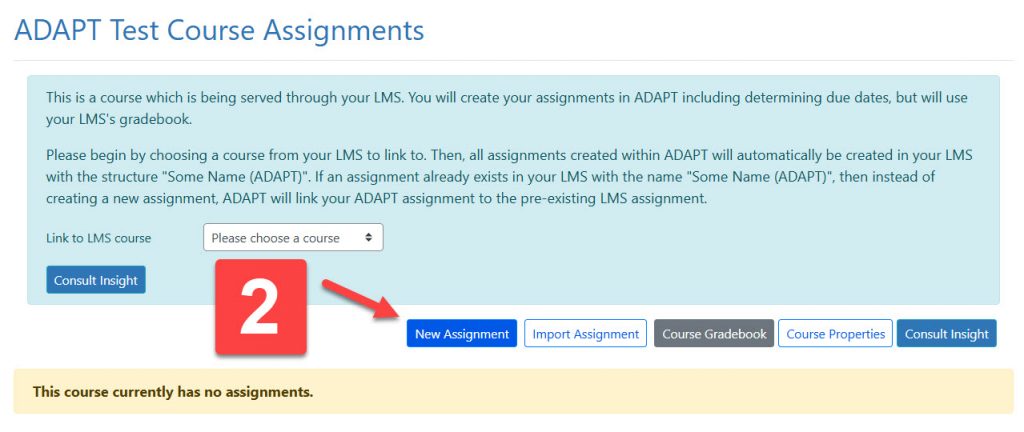
Step 3: Build an Assignment
- Click into the course that was just created.
- Click “New Assignment”.
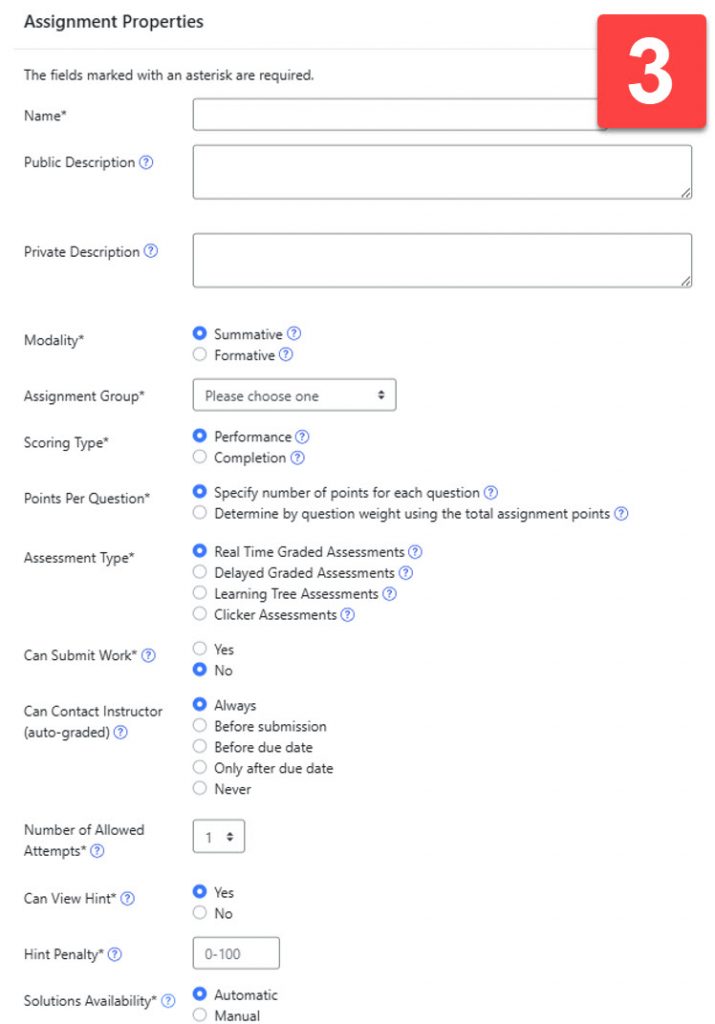
- Set assignment properties.
- Click “Save”.
Add Questions from Existing ADAPT Library
- Click on the assignment that you’d like to add questions to.
- Click “Add Questions”.
- Choose a question source
- “Search Questions” lets you filter questions by several different properties.
- “My Questions” takes you to a library of questions that you have adapted or created.
- “My Favorites” shows you questions that you have favorited.
- “My Courses” allows you to select questions from other courses that you have created.
- “Commons” contains questions for courses that have been curated by the ADAPT/LibreTexts team. They could be courses matching a specific textbook or ones geared towards a course/topic.
- “All Public Courses” shows you questions created and made publicly available by other ADAPT users.
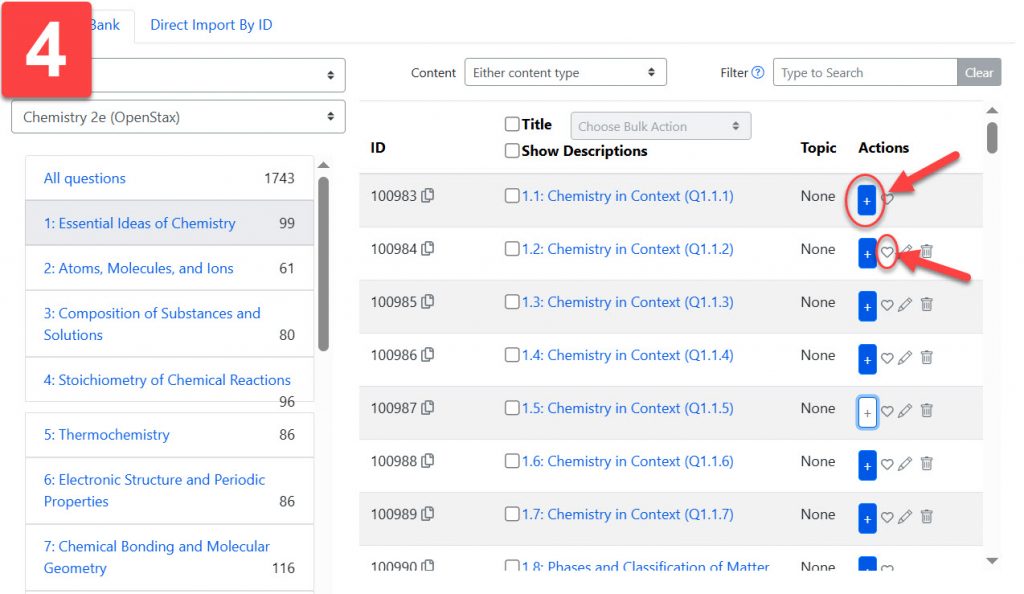
- Browse questions available to you. Clicking on a question will allow you to preview it in a pop-up window. Click the “+” icon to add them to your assignment. Clicking the heart icon will allow you to add questions to a Favorites folder to be used at a later time.


Create Own Questions
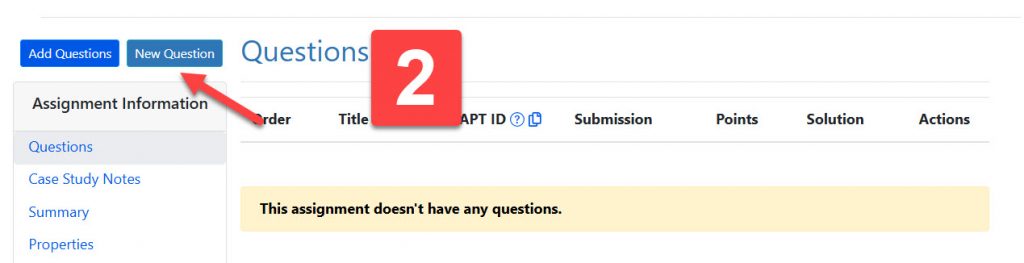
- Click on the assignment that you’d like to add questions to.
- Click “New Question”.
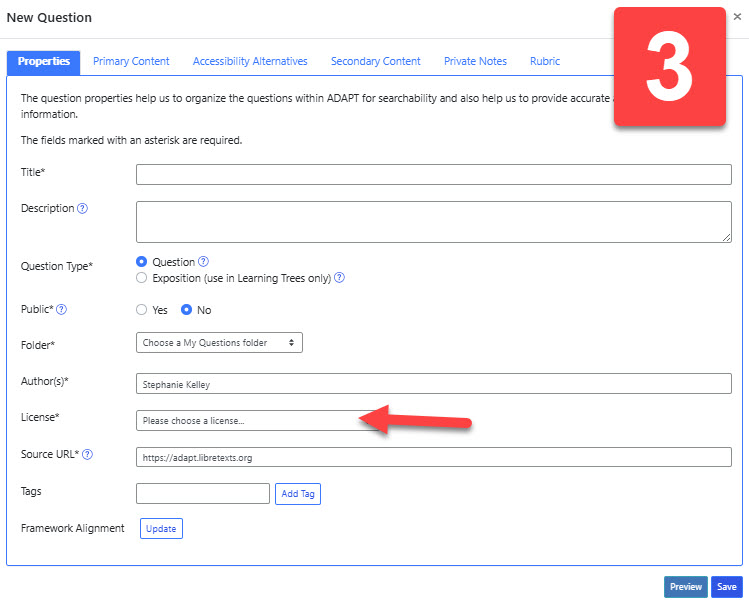
- Fill in “Question Properties”
- When selecting a License, an open one is preferable so others can benefit from your work!
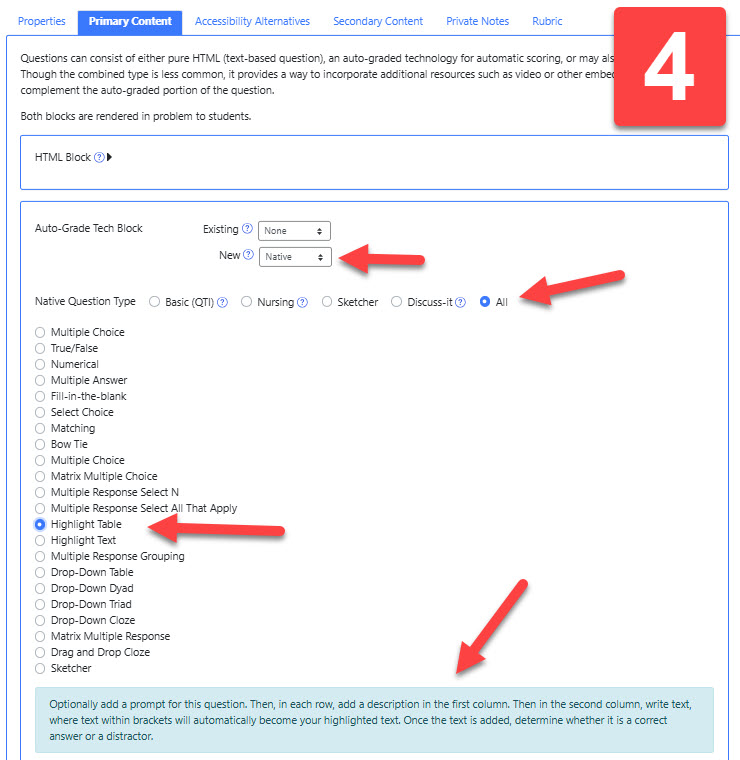
- Fill in “Primary Content”
- Use “HTML Block” if the question you are creating is purely text-based.
- If you would like to import H5P, WeBWorK, or iMathAS content that you have, go to the “Auto-Grade Tech Block” and “Existing” to make a selection.
- To build a question using ADAPT’s templates, go to “Auto-Grade Tech Block” and next to “New” select “Native”.
- Next to “Native Question Type” select “All” to see all the types of questions you can build. When you select a question type, the blue box below will explain what kind of interaction students will experience and how to format your question.
- Click “Save”.
Step 4: Share with Students in Your MCC Canvas Course
- In Canvas, create a new assignment that you would like to use ADAPT for.
- Next to “Submission Type,” select “External Tool” and then select “ADAPT”.
- Once to click “Save”, you will be directed to select the ADAPT course and assignment that you would like to link to the Canvas assignment. Click “Link Assignment” once you’ve made your selections.
- Alternatively, you can go to your ADAPT course and link it to a Canvas course. Doing this will automatically populate the Canvas course with all the assignments you’ve created in the linked ADAPT course.


Step 5: Grade an Assignment
By default, ADAPT courses are set for students to access and use them from within the LibreTexts website rather than from within Canvas. So, the course properties must be set to enable the ADAPT course to interact with Canvas Grades.
- Make sure your ADAPT course is set to interact with your Canvas gradebook.
- Click on the course properties icon next to the course.
- Check the box for “Yes” next to “LMS”. Click “Save”.
- Click the checkmark icon next to the assignment you would like to grade and this will take you to ADAPT’s grader.
- The grader will allow you to view and grade both open-ended and automatically graded submissions.
- You can grade by student or by question.
- Click “Submit” after each grade that you enter


ADAPT Training & Support Resources
- How to Use ADAPT’s Open Grader
- Creating a Learning Tree Assignment
- ADAPT Trainings from ASCCC’s Open Educational Resources Initiative:
- For technical assistance or any questions, contact LibreTexts’ Support Center
Summer 2025 MiraCosta Teaching Resources & Reminders
For those teaching this summer, please see below for important reminders of key resources to help you help your students succeed!
And don’t forget that this spring we added a new tool to Canvas called Adjust-All which makes copying previous Canvas courses for reuse a lot easier. It enables you to change all course item due dates and announcement publication dates in one place, rather than having to access each item individually.
Expectations and Recommendations for Faculty Teaching Online
- The MiraCosta Online Class Quality Guidelines document – updated this spring -provides MiraCosta requirements and recommended practices for online instructors. Join our accompanying Canvas course to be inspired by (or even copy from) real Canvas examples shared by colleagues.
- Class Availability in Canvas – Faculty teaching distance education (online, HyFlex, and hybrid) classes are expected to make their classes available by mid-day on the Monday of the week in which they begin. To learn more, please see MiraCosta Distance Education Class Authentication Compliance, Start-of-Term Availability Procedures, and Recommendations.
- Accessibility – Please be sure to use the PopeTech accessibility checker on your Canvas classes, and use the auto-captioning and caption cleanup tools for videos created via Canvas Studio, Zoom, or YouTube.
- Zero- and Low-Textbook Cost Course Sections – If you are teaching one of these, please be sure to mark your class in SURF as LTC or ZTC if you haven’t already, so students know that your class has lowered that access barrier!
- Artificial Intelligence class policy – Students want to know the “rules” around using AI in your class. There is not a blanket college policy but please review the attached resolution on Artificial Intelligence in Teaching and Learning just passed by our Academic Senate. Please check out a 1-page guide to help you craft language to share with your students if you’re still working on that.
Support for You
- OurCanvas start-of-term checklist can help you prepare your classes. New to Canvas? We have lots of resources to help you get started.
- The TIC website is a great starting point for all kinds of information and support for teaching with online technologies – see the last section of this email for specific TIC links to MiraCosta technologies supporting online teaching and learning.
- Ongoing faculty support – You can set a meeting with Instructional Designer Nadia Khan, for help with Canvas and teaching with tech. We have a new instructional designer also available for 1-1 support, Stephanie Kelley, especially for faculty working on use of OER/ZTC course materials.
- Tech Support – Canvas options include 24×7 phone and chat support. Just click the Tech Support button at lower left in Canvas! Zoom and other MiraCostatech support for faculty is available through the MiraCosta employee help desk.
Support for Your Students – Please help your students to be aware of and make use of these important services and resources!
- Student Online Academic Readiness workshops – In collaboration with the library, I’ll be offering a number of these during the first three weeks of summer – see all dates and times on the MiraCosta Online site and in Canvas announcements. These workshops provide tech tips, engage students with resources MiraCosta provides to support them, as well as reviewing habits and attitudes of successful online students. Encourage your students to attend and, if you like, find out which of your students participated in order to incentivize their attendance.
- Online Student Support Access Points – the Student Support Hubin Canvas, accessed via the Student Support button on the left in Canvas, gives quick access to online support from the library, Learning Centers, counseling, career center, open computer lab staff, student help desk, health services, CARE team, and more! The Ask the Spartan chat integrated into MiraCosta’s website provides both automated responses and the opportunity to connect to Live Chat with staff from many student support areas. The Help Hut and Online Education webpages are also great starting points for students to connect with all kinds of support services when they’re not in Canvas.
- Tech Support – Also at lower left in Canvas is a button for students to quickly access Tech Help options, including 24×7 phone and chat support from Canvas, and our local MiraCosta ITS help desk. Our ITS team is also offering in-person workshops for students about Zoom this summer – 6/10, 10 – 11 am OC 12136; and 6/12, 11 am – 12 pm SAN 101.
- Technology Needs – Be sure to share the form for students to fill out if they need a laptop and/or wifi hotspot to succeed this summer
MiraCosta’s Online Education Tools
Select the links for a detailed MiraCosta-specific overview (and often, recorded Flex workshops) for each tool below. Please don’t hesitate to contact me if you have questions about these or other resources.
- Canvas – goes without saying (well, I said it)
- Adjust-All – as noted above, a new tool to make it easier to update course dates when copying/reusing Canvas courses
- Zoom – if you’re using Zoom, make sure you’re using a pro Zoom account through MiraCosta.
- Canvas Studio – enables faculty and students to create videos while inside Canvas. Faculty can create interactive discussion or quiz activities based on video. Auto-captioning and caption clean up tools are high-quality and easy to use, but not automatic!
- Pronto is an incredible mobile-friendly and Canvas-integrated messaging platform that’s ready to use in every course.
- Pope Tech helps faculty detect and correct accessibility issues within Canvas. The PopeTech dashboard tool (via the Pope Tech Accessibility course menu item) provides a course-level guide for addressing all accessibility issues in a course in one place.
- SensusAccess provides multi-format course material accessibility and file type conversion options for students. If you notice an S symbol next to your page title and next to items in the Modules view, that’s SensusAccess.
- Perusall is a social annotation tool available within Canvas that makes it easy for students to comment/discuss right on a text, document, or image.
- Lab Archives Electronic Notebook is an online notebook especially useful for translating lab manuals and student notes/work into the online environment.
- PlayPosit – This video interaction tool offers more complexity and options than Studio. Studio is a great place to start, but if you’re looking for more types of interactivity to add to your videos, PlayPosit is great.
- Turnitin – help students learn to properly cite sources and avoid plagiarism. Also provides grading and peer review tools for written work. Turnitin has included an AI detection capability for instructors, but please beware of false positives should you use it. Most experts agree that AI detection tools are extremely unreliable.
Best wishes for summer success!
– Jim
Jim Julius, Ed.D.
Faculty Coordinator, Online Education
Online Ed Tips: End of Spring 2025
Dear MiraCosta Colleagues,
Some Online Ed reminders and opportunities as you wrap up spring and start thinking about what’s next.
Canvas End of Term
After June 6, your spring Canvas classes go into read-only mode for you and your students. If you wish to remove access to any of your course materials for your current students beyond this semester, you need to do so by then. Review our Canvas end-of-term guide for details. It also discusses what you need to do if you have any students who will receive Incomplete grades.
Support for Summer/Fall Class Prep
- When’s the last time you explored the TIC website? Start on the tic.miracosta.edu home page and see where it leads you – there are many great resources including workshop recordings, tutorials, examples, and guidelines for online teaching.
- For one-to-one support in your course design and teaching connect with Instructional Designer Nadia Khan – she’s around all summer. Or, if you’re working on classes that are ZTC (Zero Textbook Cost), connect with Instructional Designer Stephanie Kelley.
- For those teaching summer or fall classes that are Zero- or Low-Textbook Cost, please update your course section ZTC/LTC designations in SURF if you haven’t done so yet.
Summer Professional Learning Opportunities
- The Online Teaching Conference is in Long Beach, June 16-18. Contact me if you’re interested in support for your registration.
- There are some great @ONE online teaching courses – all free!
- An online conference called Cal OER returns for its fifth year, Aug. 6-8. The call for proposals closes June 9. Conference registration ($25) is open now.
May your summer recharge you!
– Jim
Jim Julius, Ed.D.
Faculty Coordinator, Online Education
Online Ed News You Can Use – April 2025
I hope you have a chance to enjoy spring 🦋🌼🐝 in the beautiful world around us! In the online world, some important news, reminders, and upcoming opportunities …
Summer and Fall Classes are in SURF and Canvas
- Course sections assigned to you in SURF for summer and fall now have shells available for you to work with in Canvas (select Courses on the left, then All Courses to see upcoming classes that aren’t yet on your dashboard).
- If any of your fall (or summer) course sections are Zero Textbook Cost (ZTC) or Low Textbook Cost (<=$40), you should designate them as such in SURF using these directions, so that the classes will have the appropriate logo in SURF. And don’t forget to inform the bookstore of your course material details, even if you are using zero-cost resources.
Professional Learning Opportunities related to teaching online
- Tomorrow and continuing through spring: CVC webinars on Generative AI (also provides access to recordings of previous ones)
- April 14-16: the free online Peralta Online Equity Conference – register to receive email updates and access to recorded sessions!
- April 24, 1-2:30 pm: The CCC Accessibility Center is hosting an online workshop, “How to Create Accessible Canvas Courses with PopeTech”. Registration is NOT required – simply use the Zoom link to access. PopeTech is available in our Canvas.
- April 25, 10 am – 3 pm: Alex Rockey of Bakersfield College is facilitating a free online Mobile Design Unconference. Register to learn more.
- May 12 – June 8: Perusall will host an online, author-facilitated, communal reading experience (“asynchronous book club”) on John Warner’s book, More Than Words: How to Think About Writing in the Age of AI. It has a small cost to cover access to the book. And, you’ll get to experience the social annotation tool, Perusall.
- May 15: The CCC Accessibility Center has a free Annual Workshop with sessions throughout the day. One registration allows you to attend any sessions.
- May 19–23: The free online Perusall Exchange conference, “Why Reading Matters to the Future of Learning,” includes some compelling speakers and also an opportunity to learn more about the Perusall social annotation tool, which we have available to use in Canvas.
- Summer:
- The CCC Online Teaching Conference is in Long Beach, June 16-18. If you would like support to attend, let me know! Early bird registration ends April 15. Online Ed can cover conference registration but likely not hotel or other travel expenses.
- All facilitated and self-paced @ONE online teaching courses are free! (Be sure to click through the additional pages to see all your options.) Enroll now in a facilitated class before they fill up!
- The online Cal OER conference is August 6-8. The call for proposals is open now through June 2.
- Anytime: Schedule an appointment with either of our wonderful Instructional Designers, Nadia Khan or Stephanie Kelley (who specializes in support for faculty working on classes that use OER or other zero cost materials).
– Jim
Jim Julius, Ed.D.
Faculty Coordinator, Online Education