
TidyUP: Canvas Content Cleanup Tool
TidyUP is available within a Canvas course to help quickly identify and clean up course content. Identifying and deleting extra files, folders, pages, or assignments that are no longer in use will make your course easier to manage and more usable for everyone.
Note: TidyUp does not identify files that are being used in Question Banks
Enable the TidyUp tool in a Canvas course
- Start within your Canvas course, click on Settings at the bottom of the course navigation menu.
- Click on the Navigation tab.

3. Click on the 3 dots to the right of TidyUp.
4. Select + Enable.
5. Click Save.
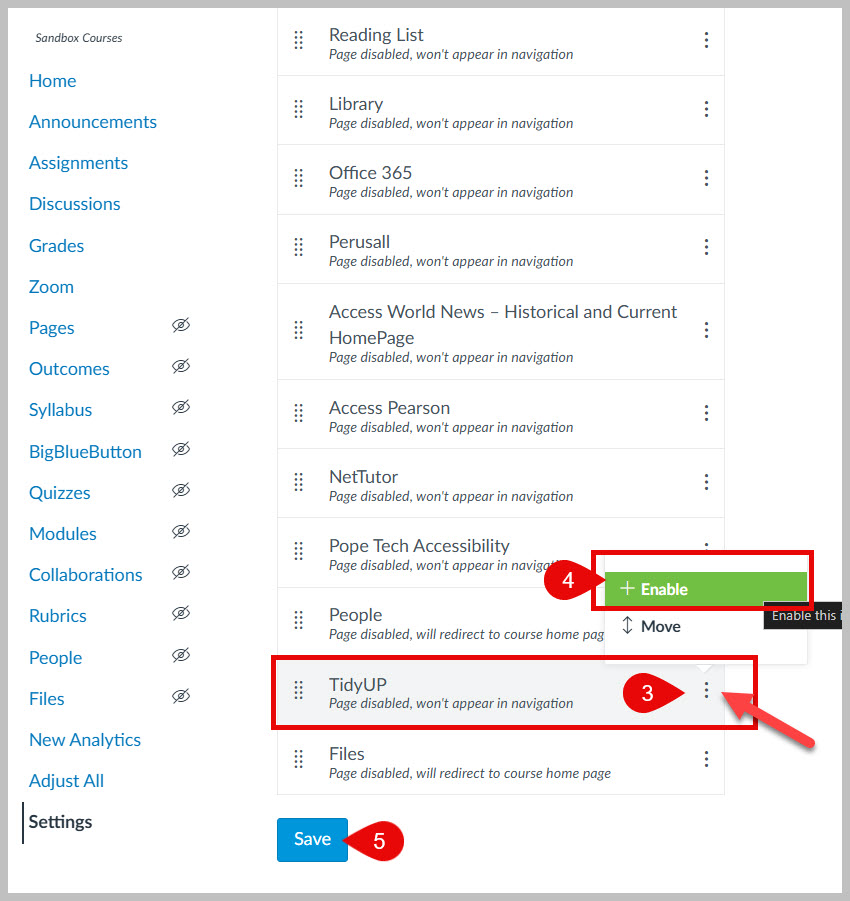
The TidyUP tool will now be available on your course navigation menu near the bottom of the list.
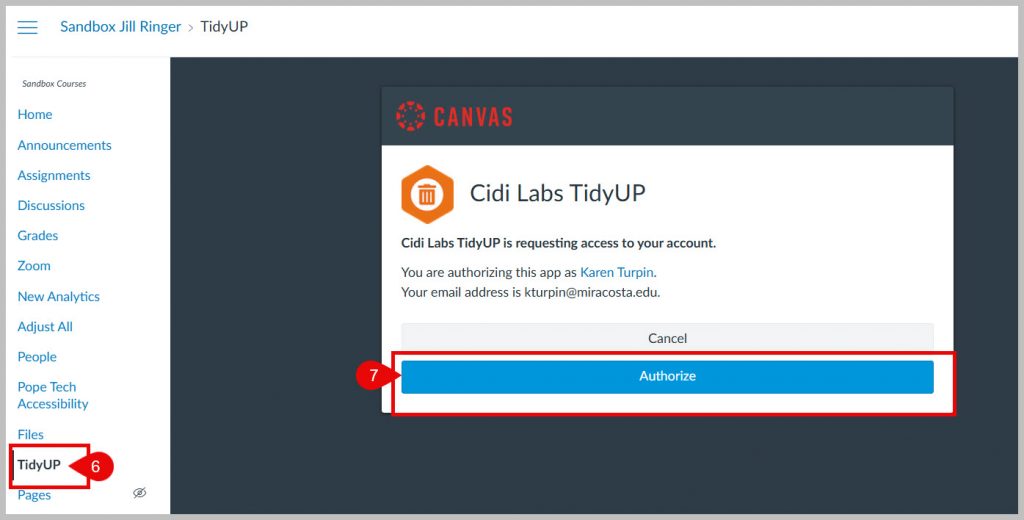
6. Click the TidyUP link.
7. Click the Authorize button the first time you launch the tool.
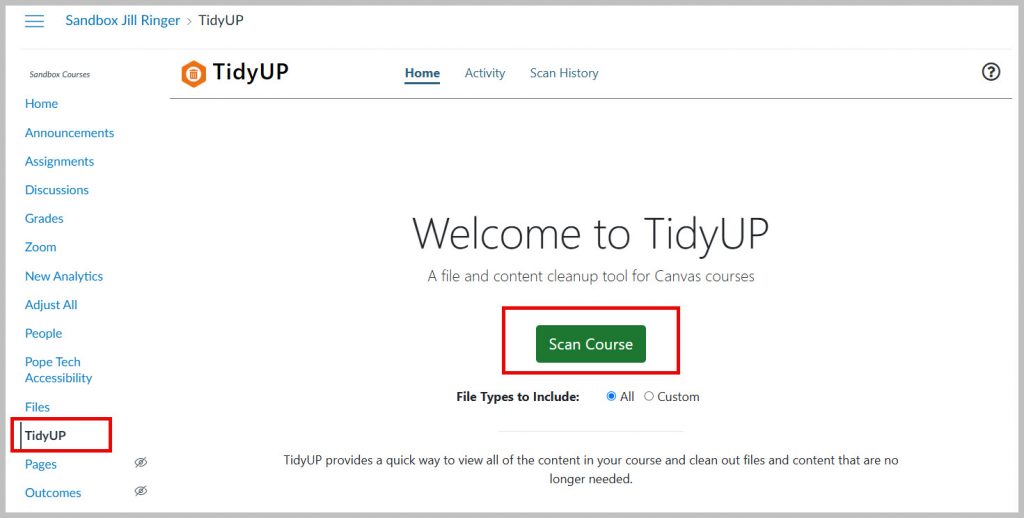
You are now ready to use the TidyUp tool. Click the Scan Course button to get started.
TidyUP Training & Support Resources
- Sign up for sequenced video-training via email!
- TidyUP Users Guide
- Does Tidyup scan quiz questions for file usage?
- TidyUP Best Practices
- TidyUp Knowledgebase
- TidyUP Video Hub
- Support Portal – Open a TidyUp help desk ticket
- For technical assistance or any questions, contact: support@cidilabs.com