The way that Zoom is integrated with Canvas was updated over the 2023-24 winter break to Zoom LTI 1.3. For all who share Zoom meetings and recordings within Canvas using the Zoom integration, you will need to re-enable the Zoom LTI menu option within your spring 2024 Canvas courses. If you have Zoom recordings, those are safely within your Zoom account and can be accessed once you re-enable the Zoom menu option within each Canvas course.
NOTE: Faculty have the option to share Zoom links to meetings and recordings directly in Canvas courses rather than using the Zoom LTI integration described below.
Enable the Canvas Zoom LTI 1.3 Integration & View Past Meetings/Recordings
Enter your Canvas course
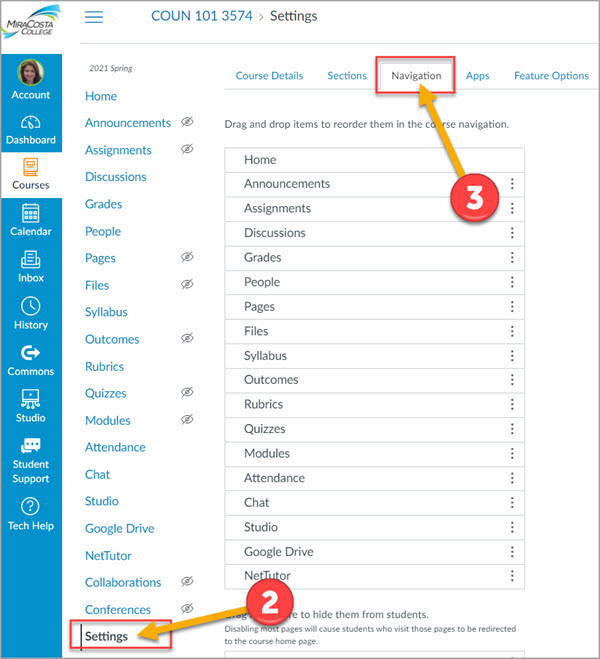
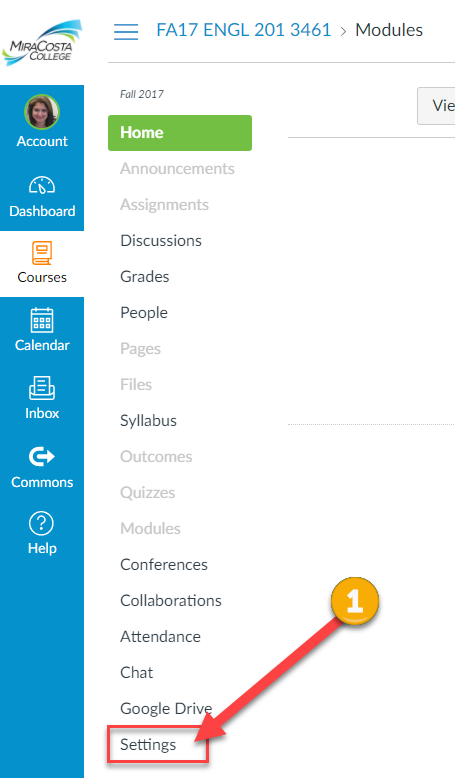
Click Settings on the course menu
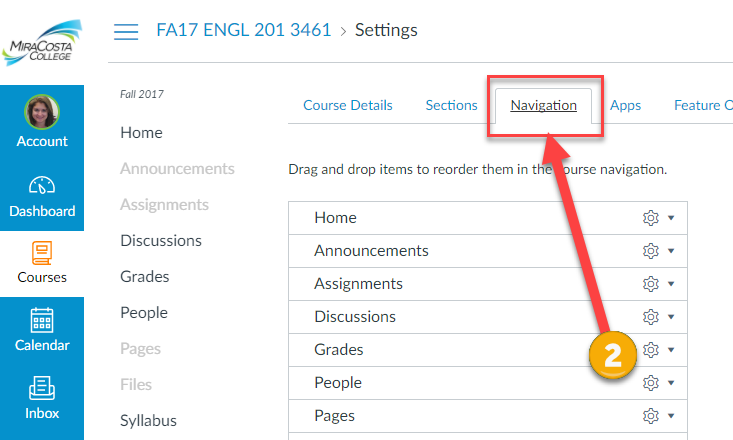
Click the Navigation tab
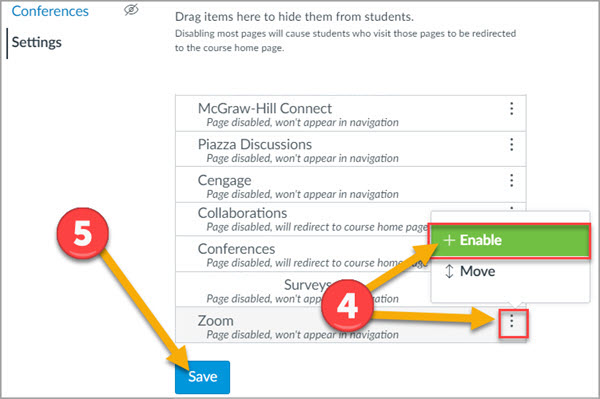
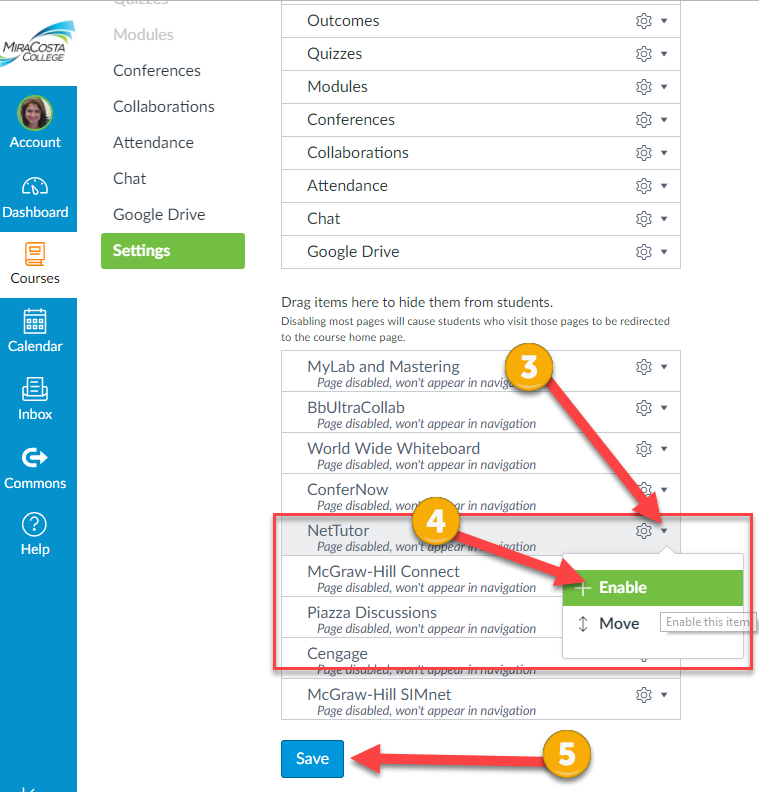
Click the 3 dots to the right of Zoom and select Enable.
Click the Save button
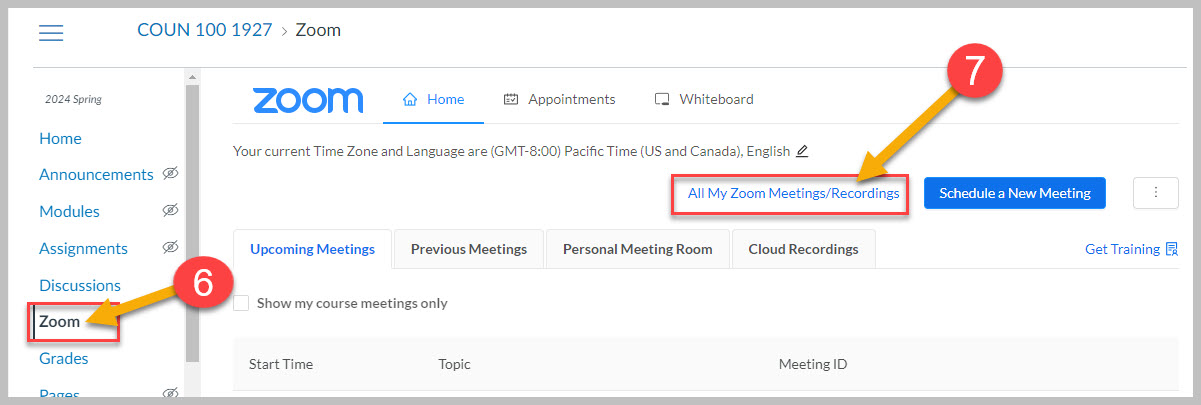
6. Click the Zoom course menu item which will appear in your course menu.
7. Click All My Zoom Meetings / Recordings to view all past course zoom meetings and recordings.
MiraCosta’s Learning Centers provide great online tutoring for all students, available in Canvas through the Student Support Hub. For subjects and times where local online tutoring may not be available, the next option is eTutoring through the Western eTutoring Consortium. A third option with even more subject and time availability is NetTutor, available through the California Virtual Campus (CVC-OEI).
Regardless of which online tutoring services may best benefit your students, these are recommended practices that faculty use to help more students benefit from tutoring:
Mention online tutoring sources in your syllabus
Embed reminders about use of tutoring within instructions for assignments
Provide specific references to the opportunity for tutoring in your feedback/communication with students
Normalize tutoring as an option that can support everyone
NetTutor provides support for just about any academic subject, up to 24×7 for the most popular subject matter, and can be made available via your Canvas course menu. The link opens an interface where students select their subject for NetTutor help, with no additional login required. Students can access both the STAR-CA tutoring consortium from California and the full complement of professional NetTutor tutors.
How can you help students take advantage of NetTutor?
First, please keep in mind that if your subject is supported by local MiraCosta Learning Center tutors, you should direct your students to that support primarily. If you do want your students to consider NetTutor support:
Also with NetTutor, each instructor may specify “Rules of Engagement” that inform tutors about the approach and resources you would like them to use when working with your students. If you would like to do this, contact Jim Julius for more information.
Adding NetTutor to your Canvas course menu
Once you add NetTutor to your course menu following the directions below, click the NetTutor link to verify that your subject is available.
1- Click Settings at the bottom of your course menu
2- Click the Navigation tab
3- Click the gear icon to the right of NetTutor 4- Select +Enable 5- Click the Save button
We’re almost there! Let’s finish strong and (maybe?) think a little bit about prepping for spring online teaching 😅
Canvas End of Term
After Dec. 31, your fall Canvas classes go into read-only mode for you and your students, and move from the Canvas Dashboard to the Past Enrollments area of Canvas (select Courses at left in Canvas, then All Courses). If you wish to remove access to any of your course materials for your current students beyond this semester, you need to do so by Dec. 31. Review our Canvas end-of-term guide for details. It also discusses what you need to do if you have any students who will receive Incomplete grades, as well as what to do if you wish to close course access sooner than Dec. 31.
The SOAR (Student Online Academic Readiness) workshop returns in spring. In partnership with librarians, we’ve already lined up many workshop times for the spring semester. Please recommend this to your students as you build syllabi and welcome pages for your classes! As always, we’ll have Canvas announcements reminding students of sessions each week. And as always, you can check to see if your students have attended one of these workshops in order to incentivize participation.
The SOAR (Student Online Academic Readiness) workshop returns in spring. In partnership with librarians, we’ve already lined up many workshop times for the spring semester. Please recommend this to your students as you build syllabi and welcome pages for your classes! As always, we’ll have Canvas announcements reminding students of sessions each week. And as always, you can check to see if your students have attended one of these workshops in order to incentivize participation.
Happy break!
Jim Julius, Ed.D. Faculty Coordinator, Online Education
Each term, typically in weeks 1-3, 5, and 9, Online Education offers multiple 1-hour Student Online Academic Readiness (SOAR) workshop sessions open to any student. The list of SOAR sessions is available on the TASC Student Workshop site. Students also have an announcement in Canvas with upcoming workshop dates/ times provided. Note: Prior to 2022, this workshop was known as the Student Orientation to Online Learning (SOOL).
SOAR has the following outcomes:
Students will learn habits and attitudes of successful online students
Students will be able to effectively select and get started in online classes
Students will be able to navigate and use basic online education tools (primarily Zoom & Canvas)
Students will be able to access key online technical and academic student support resources
SOAR is typically offered in-person at the Oceanside campus and online, though during COVID and for spring 2022, all sessions are online. (It was offered in-person at SEC but attendance was extremely low.) Student attendance at SOAR is recorded in SURF so that instructors may require attendance or provide extra credit (instructors, see below for details).
Students who attend SOAR are enrolled into a Canvas course that includes extensive information to support student success in online education. The course remains available to the students indefinitely.
The Canvas SOAR class is open for anyone to self-enroll in, and the main Online Education page also includes a recorded version of the online SOAR which is open for anyone to view. Simply self-enrolling and/or watching the recorded version does not make a student eligible to have their attendance recorded in SURF; attendance at a live in-person or online session is required.
Over 5500 students have participated since SOAR began in 2014. Research shows that from 2014 to 2018, 72.8% of those who attended SOAR in the same or a previous term successfully completed DE courses vs. a 65.9% DE success rate for students who had not attended a SOAR workshop.
Student Online Academic Readiness Attendance
Any instructor can use SURF to find out which of their students have attended.
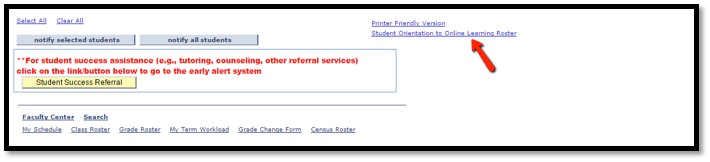
Enter SURF, go to a Class Roster page, and scroll to the bottom
Click the “Student Orientation to Online Learning Roster” link (see image below)
A PDF should open in a new browser tab or window with a roster showing which students attended an orientation, and on what date. If the roster doesn’t open, please ensure that it wasn’t blocked by a popup blocker. Please note: you will see a spinner icon while the PDF is generating. This can happen quickly or it can take a significant amount of time – up to several minutes – so please be patient while the process runs.
Each semester I send out “midsemester grades” to all of my students. Students appreciate the heads up, and it often leads to conversations that benefit the students.
For those interested in sending out a “midterm report” regarding your students’ current grade in the course… consider using the message option in the “New Analytics” feature. With it, you can customize messages to go out to students based on their grade percentage (e.g., between 90% – 100%, 80% – 89%, 70% – 79%, 60% – 69%, etc.). This is an excellent way to let students know how they are currently doing in the course.
First Step: Grading and the Canvas Gradebook
Complete all grading 24 hours before sending out the midterm reports. The ‘New Analytics’ feature does not read directly from the gradebook… it has a lag of 24 hours before it is updated. Once you have finished grading… wait 24 hours before sending out the midterm reports.
As part of the grading, place a zero for any assignments overdue that are not submitted (otherwise, they are not included in the grade calculations)
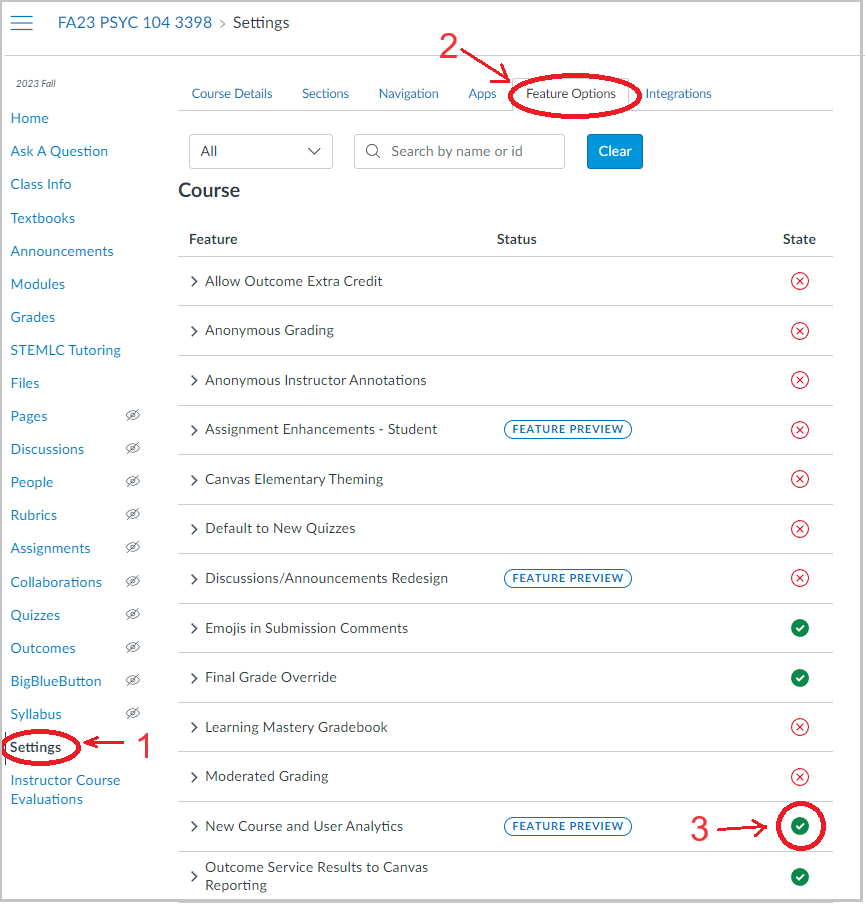
Second Step: Enable the New Analytics Feature
Click on the ‘Settings’ option in your Canvas Course
Click on the ‘Features Options’ tab along the top
Click the ‘New Course and User Analytics’ option
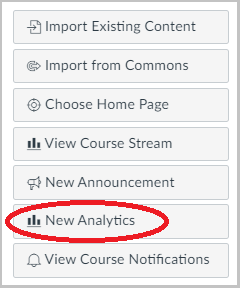
Third Step: Open the New Analytics Feature
From the Home Page of your Canvas course, select ‘New Analytics’
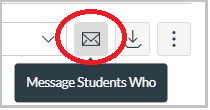
Fourth Step: Prepare to Send Out Messages
Click on the ‘Envelop’ icon.
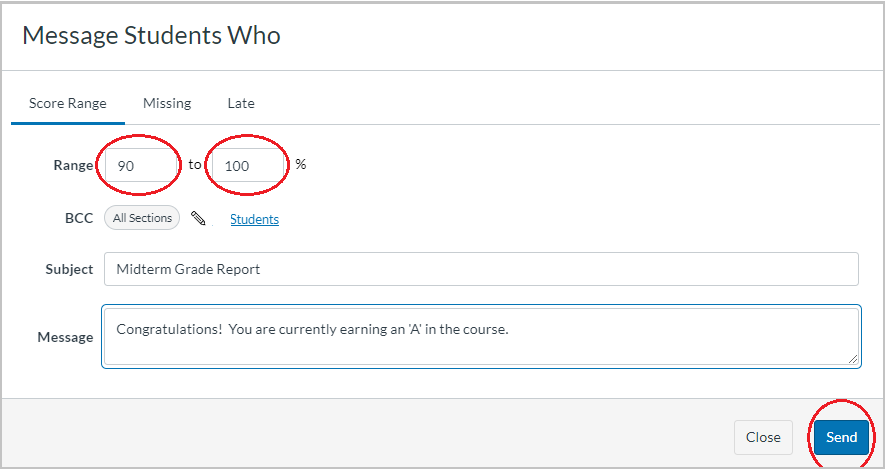
Fifth Step: Prepare to Send Out Messages
Provide the lower and upper range for grade percentage.
Type the Subject line and Message. Adjust both to be meaningful and helpful to the students receiving the message. I tend to say ‘Congratulations’ for all passing grades (A, B, and C), and let students with grades not quite passing that making a change now could help them to pass the course. For students significantly below passing, I share that a bigger ‘mid-course’ correction is needed, but that it remains within their options. Share resources, provide advice, and cheer them on.
Click ‘Send’
Repeat this process for each grade range you’ll be using (e.g., 90 – 100, 80 – 89, 70 – 79, 60 – 69, etc.).