

Author: Karen Turpin
Course Visibility Options
Should I make my Canvas course Public, Institution, or keep as the default Course? This guide explains the several options for privacy and visibility of courses.
- Download: Course Visibility Options (PDF Version)
Filtering your Roster List by Role in Canvas People
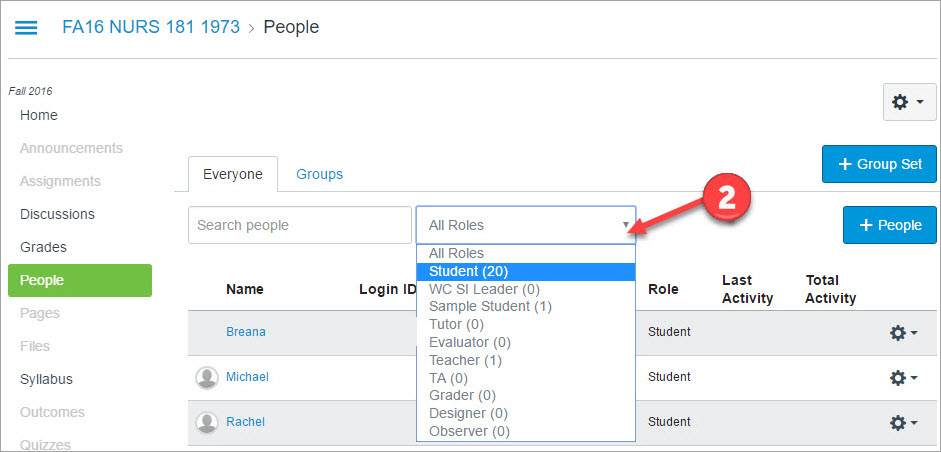
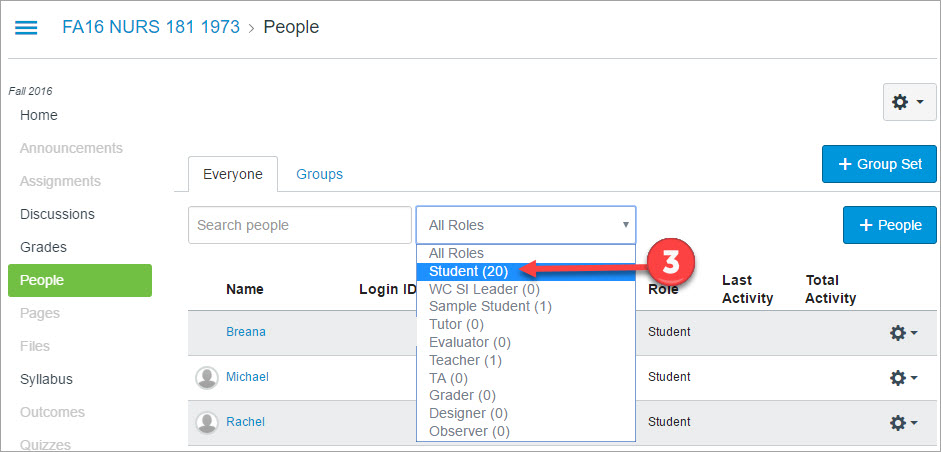
By default the People tool will display all users enrolled in your Canvas course. You can filter the users by role to obtain the count of users in that role as well as Last Activity and Total Activity.
From within a Canvas Course:
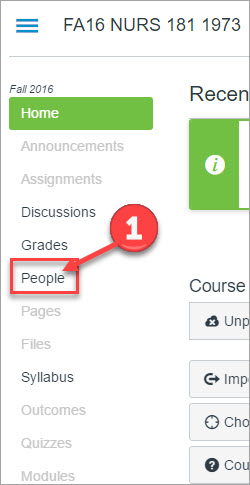
- Click on People
- Click on All Roles
- Select the specific role. The count will be displayed to the right of the role name.
Validate your course links in Canvas
It is important to verify that all links are working throughout a course. The course link validator tool can help make this task easy for faculty designing and teaching courses.
The course link validator tool searches through course content and returns invalid or unresponsive external links in both published and unpublished content.
The link validator also includes deleted links. Deleted links are links that are still in the course, but their linked content has been deleted (such as a course files or pages).
Note: Some links flagged as unresponsive are inaccessible by Canvas servers and will still work for students.
From within a Canvas Course
Open Settings
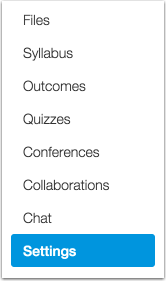
Select Validate Links in Content
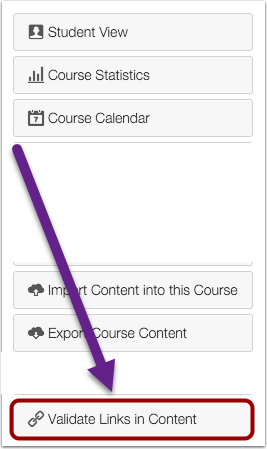
For additional directions refer to the Canvas guide: How do I validate links in a course?
Changing Your Sample Student Account Password
The following steps will to assist you with changing your sample student account password. Passwords may be changed throughout the year, passwords are required to be updated a year from the last reset Follow these directions after your employee password is reset, or when you need to reset the password for security purposes.
Changing the Canvas faculty student account password is the exact same process as regular login (example: jdoe) but login with this account’s login ID (example: jdoe-student ).
If you remember your current password for your sample student account, follow the steps outlined below:
- Step 1: Determine your new password
- Step 2: Login to the Password Management System to change the password.
- Step 3: Click on your name in the top right.
- Step 4: Click on Settings, the password reset area is at the top of the setting page in Okta.
If you don’t remember your current password, follow the steps outlined below:
- Step 1: Review the directions to reset your sample student password via the Self-Service feature within Okta using your email address to authenticate
- Step 2: Use the Self-Service feature in Okta to reset your password
Need Help?
- Contact the MiraCosta ITS Help Desk
- Submit a Help Desk Request