
Online Ed News You Can Use – Spring 24

Happy almost May! Some quick tidbits and opportunities related to all things online …

Summer and Fall Classes are in SURF and Canvas

Professional Learning Opportunities related to online teaching

Jim Julius, Ed.D.
Faculty Coordinator, Online Education
Department Courses in Canvas

Department courses are manually created courses within Canvas that can be used for communication and collaboration with MiraCostans. Some examples of department courses are special collaboration workgroups, academic senate committees, instructional departments, and student clubs. For further information contact Karen Turpin at kturpin@miracosta.edu

Adding Users to Department Courses

Instructors of department Canvas courses can add any MiraCosta College user to the course with Student, Teacher, TA, or Designer permissions. Department courses are not tied to the SURF registration system.

Directions

  1. Enter your Canvas course
  2. Click People on the left course menu
  3. Click the +People button at far right
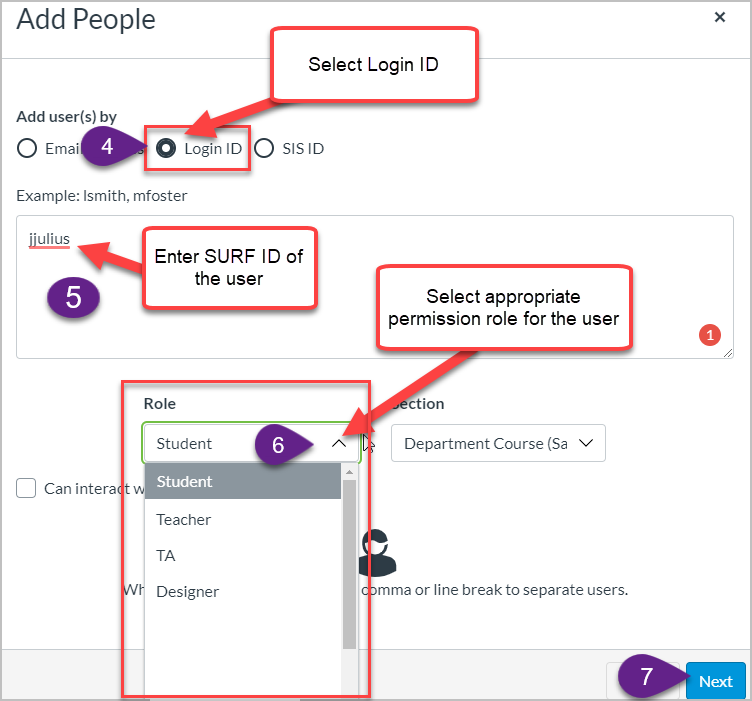
  4. Select Login ID
  5. Enter SURF ID of the user in the box.
    • You can enter one user at a time.  Example: jjulius
    • Or multiples with a comma and space between eachExample: jjulius, sdavis
  6. Select the appropriate role for the user. ‍
    • Available role options are Student, Teacher, TA, Teacher, Designer, and Student (see below for details on these options)
  7. Click the Next button
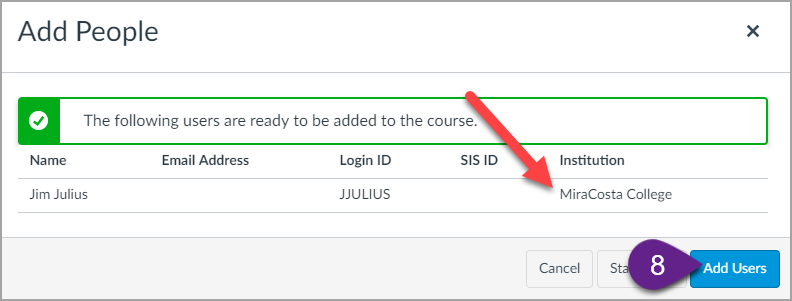
    • Some IDs may already be used in Canvas at other colleges. If you get a prompt about this, select the ID that is associated with MiraCosta College.
  8. Click the Add Users button
Step 4, 5, and 6

Course Roles Explained for Department Courses

Student Role

  • Primary use: Students enrolled in a course site.
  • Permissions: The Student role has permissions to view course content and engage in course activities, including the ability to submit assignments, participate in discussions, and view the course roster.
  • Limitations: Students cannot manipulate settings for a course.

Teacher

  • Primary use: The instructor assigned to teach a class.
  • Permissions: Teachers have all course-level permissions, including the ability to add, edit and delete all
  • content in a course, edit course settings, and manually add individuals with active Canvas user accounts.
  • Limitations: None.

Teaching Assistant (TA) Role

  • Primary use: TAs assigned to a specific class to help the instructor.
  • Permissions: TAs have permissions equivalent to the Teacher role. They have all course-level permissions, including the ability to add, edit and delete all content in a course; grade students; edit course settings, and manually add individuals with active Canvas user accounts.
  • Limitations: None.

SensusAccess – Alternative Media Made Easy

Sensus Access Notices & Flex Workshops Recordings


Sensus Acess Logo

SensusAccess offers two ways for MiraCosta faculty, classified professionals, and students to convert all kinds of documents and files into alternative and more accessible formats:

  • A website in the portal (MiraCosta login required) that allows you to upload files including Word or PPT documents, scanned images, PDFs, or web pages and generate accessible alternative types of files and media, including PDF, audio, e-books, Braille, and large print. This helps meet accessibility standards and enhance inclusion by supporting preferences and needs of diverse users.
  • A Canvas integration that automatically enables conversion of files uploaded into Canvas into alternate file and media types.

Key Features

  • Automated conversion of files into a range of alternative media and file formats
  • Remediation of inaccessible documents such as image only PDFs into accessible formats

Sensus Access in Teaching and Learning

For faculty, Sensus Access offers an important pathway to one element of Universal Design for Learning – enabling students to access course materials in the format that works best for them. Some examples of how students are likely to benefit from Sensus Access:

  • Conversion of Canvas pages or documents shared in Canvas into MP3 files for listening rather than reading
  • Conversion of course materials into formats that can be viewed offline, if the student does not always have reliable Internet access
  • Conversion of course materials into eBook format for students who prefer use of an eBook reader (such as a Kindle)

Faculty may choose to proactively use Sensus Access to generate alternative formats of course materials. Faculty may also, or alternatively, wish to remind students about the availability of Sensus Access to them, empowering them to make their own decisions about how and when to use this tool. For example, when faculty create an introductory screencast guiding students through the Canvas navigation and organization of a course, simply adding a few moments to point out the Sensus Access function on a Canvas page, and describing what it can do, can be a quick way to raise student awareness and agency!

For more information on SensusAccess and its use check out the SensusAccess website and one-page Canvas LTI description.

1 12 13 14 15 16 57