
An Option for Sending Out Midsemester Reports

Hi Folks,

Each semester I send out “midsemester grades” to all of my students.  Students appreciate the heads up, and it often leads to conversations that benefit the students.

For those interested in sending out a “midterm report” regarding your students’ current grade in the course…   consider using the message option in the “New Analytics” feature.  With it, you can customize messages to go out to students based on their grade percentage (e.g., between 90% – 100%, 80% – 89%, 70% – 79%, 60% – 69%, etc.).  This is an excellent way to let students know how they are currently doing in the course.

First Step: Grading and the Canvas Gradebook

  • Complete all grading 24 hours before sending out the midterm reports.  The ‘New Analytics’ feature does not read directly from the gradebook… it has a lag of 24 hours before it is updated.  Once you have finished grading… wait 24 hours before sending out the midterm reports.
  • As part of the grading, place a zero for any assignments overdue that are not submitted (otherwise, they are not included in the grade calculations)

Second Step: Enable the New Analytics Feature

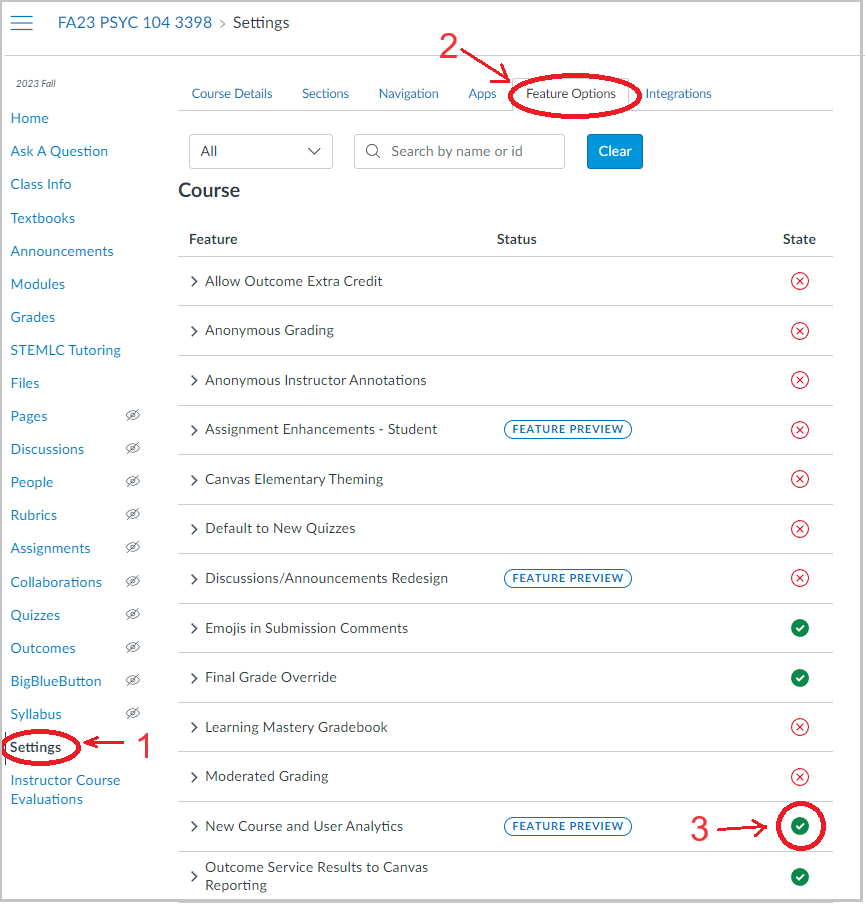
  1. Click on the ‘Settings’ option in your Canvas Course
  2. Click on the ‘Features Options’ tab along the top
  3. Click the ‘New Course and User Analytics’ option
Screen shot for Step 1, 2 and 3.

Third Step: Open the New Analytics Feature

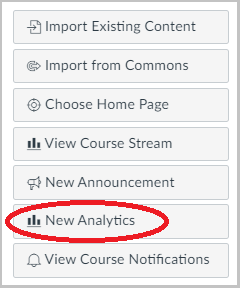
  • From the Home Page of your Canvas course, select ‘New Analytics’
New Analytics button

Fourth Step: Prepare to Send Out Messages

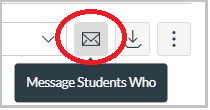
  • Click on the ‘Envelop’ icon.
Envelope Icon

Fifth Step: Prepare to Send Out Messages

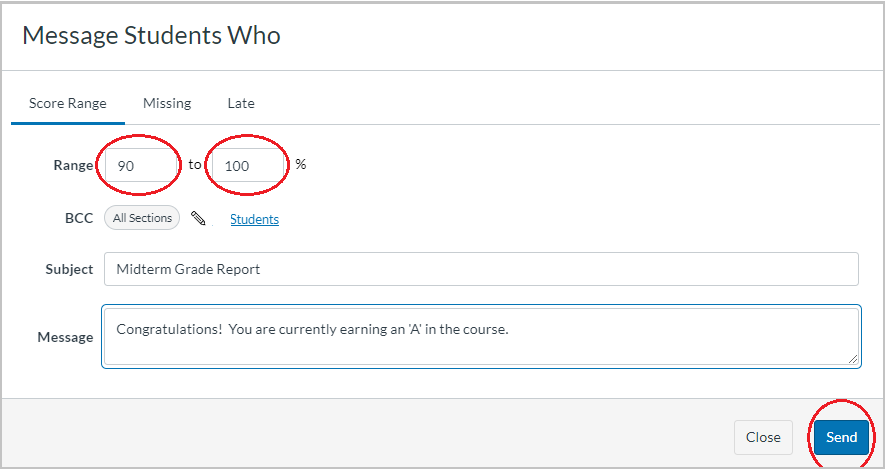
  • Provide the lower and upper range for grade percentage.
  • Type the Subject line and Message.  Adjust both to be meaningful and helpful to the students receiving the message.  I tend to say ‘Congratulations’ for all passing grades (A, B, and C), and let students with grades not quite passing that making a change now could help them to pass the course.  For students significantly below passing, I share that a bigger ‘mid-course’ correction is needed, but that it remains within their options.  Share resources, provide advice, and cheer them on.
  • Click ‘Send’
  • Repeat this process for each grade range you’ll be using (e.g., 90 – 100, 80 – 89, 70 – 79, 60 – 69, etc.).
Settings screen for Message Students Who.

Sincerely,

Robert

█ Robert G. Kelley, Ph.D.
█ Psychology Department
█ MiraCosta College

Dropped Students in Canvas – People Roster

Students that drop a course in SURF after the semester has started remain on the People roster in Canvas, but with an inactive role. Students in the inactive role do not see or have access to the Canvas course, but faculty may access activities and grades of an inactive student. This is particularly helpful when a student grade is challenged or if a faculty member is evaluating whether a dropped student is eligible to be reinstated to a course.

People

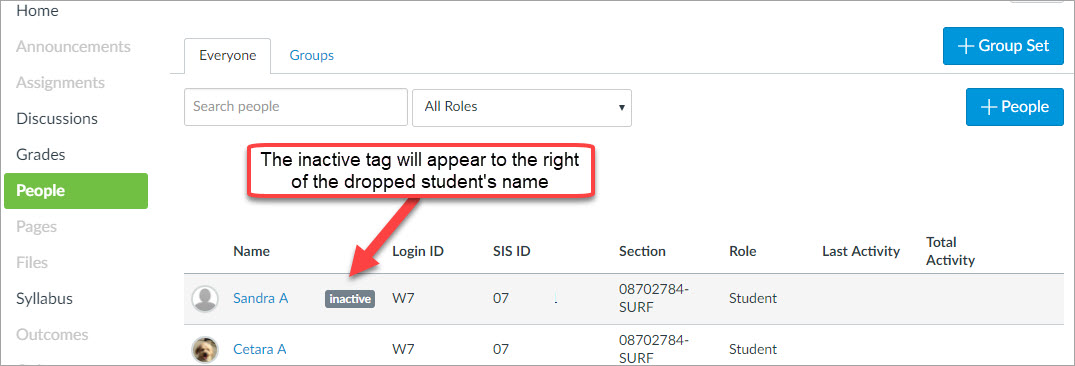
Within the People roster on Canvas, students that have dropped will have the inactive tag displayed to the right of their name. This identifier will remain next to the student’s name throughout the course unless the student is reinstated to the course. Click the student’s name to access additional information about the student and review the student’s completed activities.

  • You cannot hide inactive students in the People roster.

Grades

Inactive students are hidden by default in the gradebook. To view the grades of inactive students, choose Show Inactive Enrollments in the Gradebook settings. For complete details, see: How do I view grades for inactive student enrollments in the Gradebook?

Canvas Release (2023-06-17): New Feature: Bulk Publish and Unpublish Module Items

New Feature: Bulk Publish and Unpublish Module Items

Summary

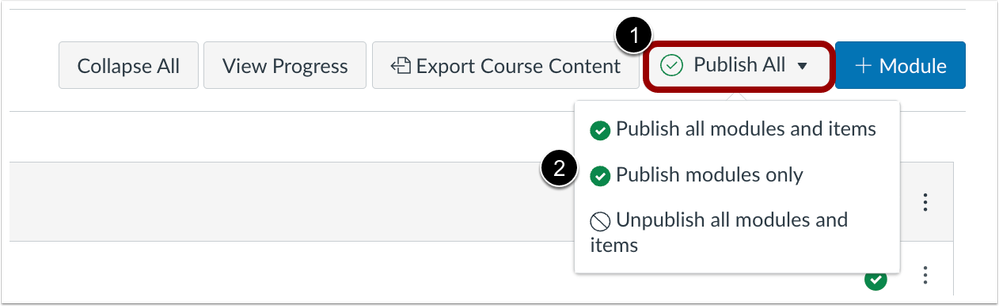
In Modules, instructors can bulk publish all modules or individual modules. Instructors have the option to publish all modules and items, publish all modules only, or unpublish all modules and items. Additionally, the publish icon on individual modules is updated to include a Module status menu. This menu includes the options to publish module and all items, publish module only or unpublish module and all items for individual modules.

Note: The ability to select multiple specific items to publish is not available.

Change Benefit

This change provides instructors additional options and improves efficiency when publishing Modules.

Feature Workflow

Modules Publish All ButtonModules Publish All Button

In the Modules page, click the Publish All button [1] and select an option [2].

Individual Module Publish Options MenuIndividual Module Publish Options Menu

To view the module status menu of individual Modules, click the Module Status Menu [1]. Then, in the drop down menu, select the desired option [2].

Additional Details

Bulk publish is only available when File Copyright is enabled and set or disabled in a course. Bulk unpublish is not available for any Files. Additionally, an unpublished module overrides the state of individual module items. If an item is published within an unpublished module, students cannot view the item on the Modules page but can still view the published items in other areas of Canvas. However, they will not be able to interact with the item until the module is published.

Canvas Release (2023-06-17): Feature Update: RCE in New Quizzes & New Quiz Updates

Update 1: Rich Content Editor in New Quizzes

Featured Video: Release Screencast: 2023-05-20 New Quizzes Rich Content Editor in New Quizzes

Summary

The Rich Content Editor (RCE) is available in New Quizzes on Production Canvas

Change Benefit

This update provides instructors the ability to utilize the accessibility checker on questions and instructions, add media recordings within New Quizzes, and change the view between the HTML editor and classic view for advanced users. Users can also access a math editor. Additionally, this update provides students with the ability to record audio and video within the RCE of a New Quiz.

Feature Workflow

New Quizzes Build Page with Rich Content EditorNew Quizzes Build Page with Rich Content Editor

When building a New Quiz, instructors can use the Rich Content Editor.

Student View New Quizzes Rich Content EditorStudent View New Quizzes Rich Content Editor

When taking a New Quiz, students can use the Rich Content Editor.

Additional Details

This update completes phase one and phase two of the Rich Content Editor integration in New Quizzes. For more information on the Rich Content Editor integration, see the Re-enablement of the Rich Content Editor (RCE) in New Quizzes blog.

Update 2: Rich Content Editor Supports Third-Party Apps in New Quizzes

Featured Video: 2023-06-17 New Quizzes Rich Content Editor Supports Third-Party Apps

Summary

In New Quizzes, the Rich Content Editor supports adding content using third-party apps.

Change Benefit

This update allows users to easily include third-party tools to provide content in New Quizzes.

Feature Workflow

Rich Content Editor App MenuRich Content Editor App Menu

To insert content using a third-party tool, click the App link [1] and select the desired tool [2].

Rich Content Editor Insert App View

When a third-party tool has been selected, users can select  content to insert in the Rich Content Editor.

Update 3: Zero-Point New Quiz in Gradebook Checkbox

Featured Video: 2023-06-17 New Quizzes Practice Zero Point New Quiz

Summary

Instructors can choose to not display a column in the gradebook or student page when creating a zero-point practice New Quiz.

Change Benefit

This change allows instructors to remove unwanted content in the gradebook and prevent confusion for students related to zero-point practice quizzes.

Feature Workflow

New Quiz Do Not Display in Gradebook or the Student's Grade Page Checkbox
New Quiz Do Not Display in Gradebook or the Student’s Grade Page Checkbox

When creating a New Quiz worth zero points, select the Do not display in gradebook or the student’s grade page checkbox. 

Additional Details

When the Do not display in gradebook or the student’s grade page checkbox is selected, the Do not count this assignment towards the final grade checkbox becomes unavailable. If the Do not display in gradebook or the student’s grade page checkbox is not selected, a column displays in the Gradebook and student grade page as the default.

1 … 8 9 10 11 12 … 21