
WeVideo (formerly PlayPosit) in Canvas
WeVideo Flex Workshop Recordings & Updates
- Transitioning from PlayPosit to WeVideo: Next-Level Interactive Learning (Recording, 54 minutes) – 1/20/2026 workshop by 3C Media Solutions team and Stephanie Gates, WeVideo Senior Customer Success Manager – Additional Resource: Q&A Article
WeVideo (formerly PlayPosit) is an interactive video learning tool that is fully integrated with MiraCosta College’s Canvas. WeVideo allows instructors to create activities using videos from Canvas Studio, 3C Media, YouTube, Vimeo, or other video sources. WeVideo now includes access for instructors to the WeVideo’s Multimedia tool to create instructional videos, podcasts or set up assignments for learners to demonstrate learning through media.
Create an Assignment in Canvas with WeVideo interactivity?
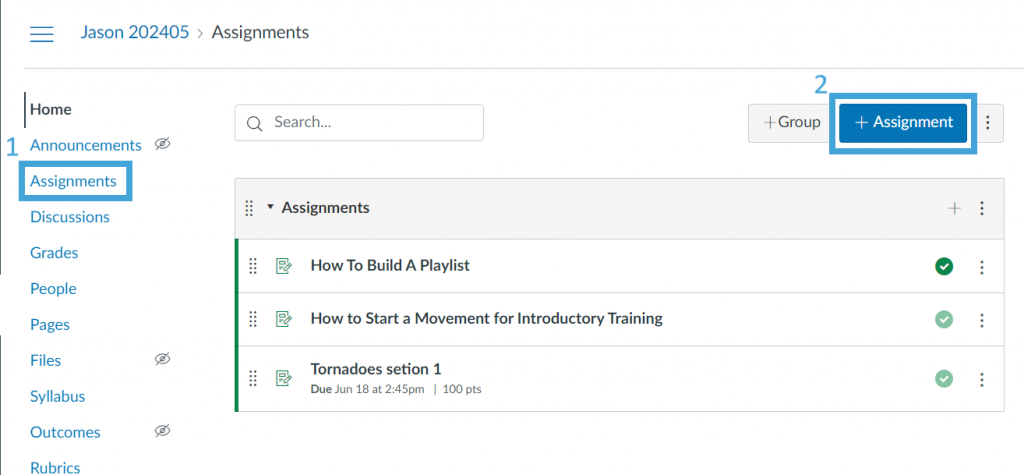
- In your Canvas course, click on Assignments
- Then + Assignment
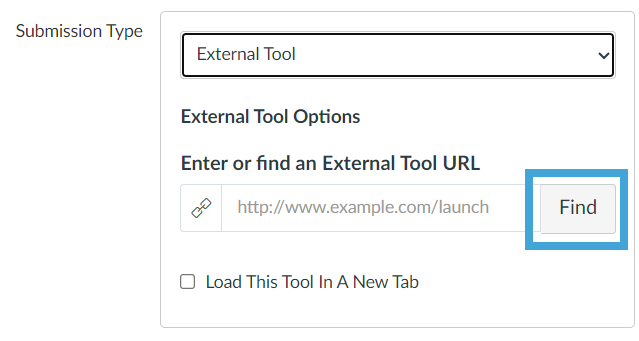
3. Enter the information for the assignment, change the submission type to External Tool, and click Find.
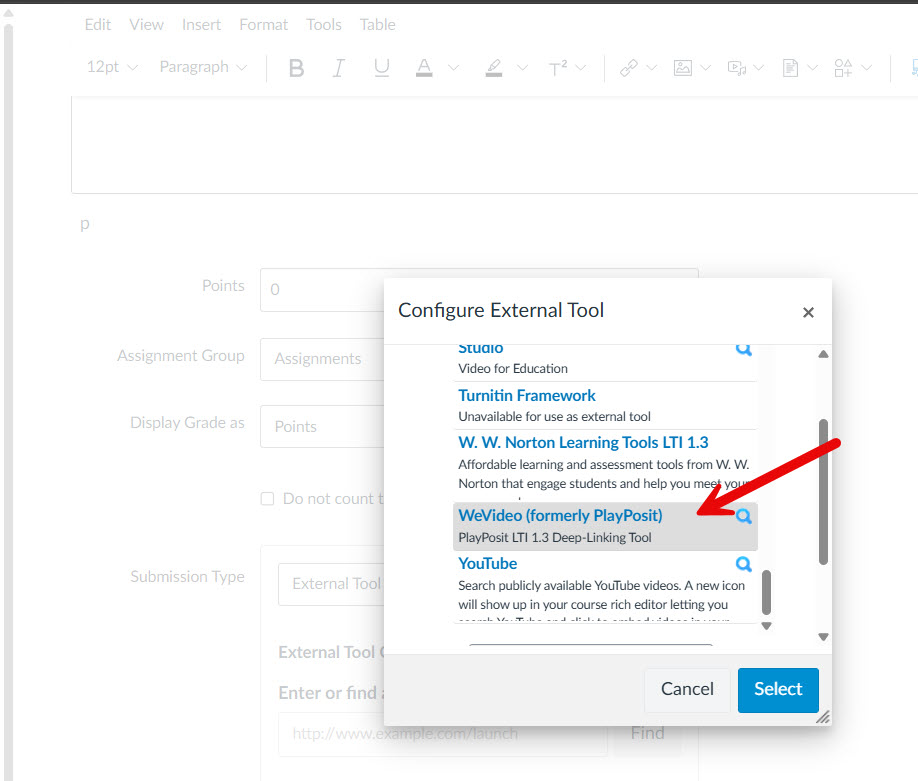
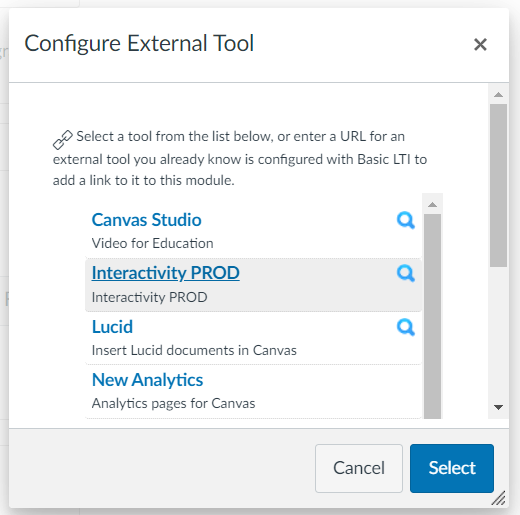
4. Select the WeVideo (formerly PlayPosit) Interactivity tool from the list.
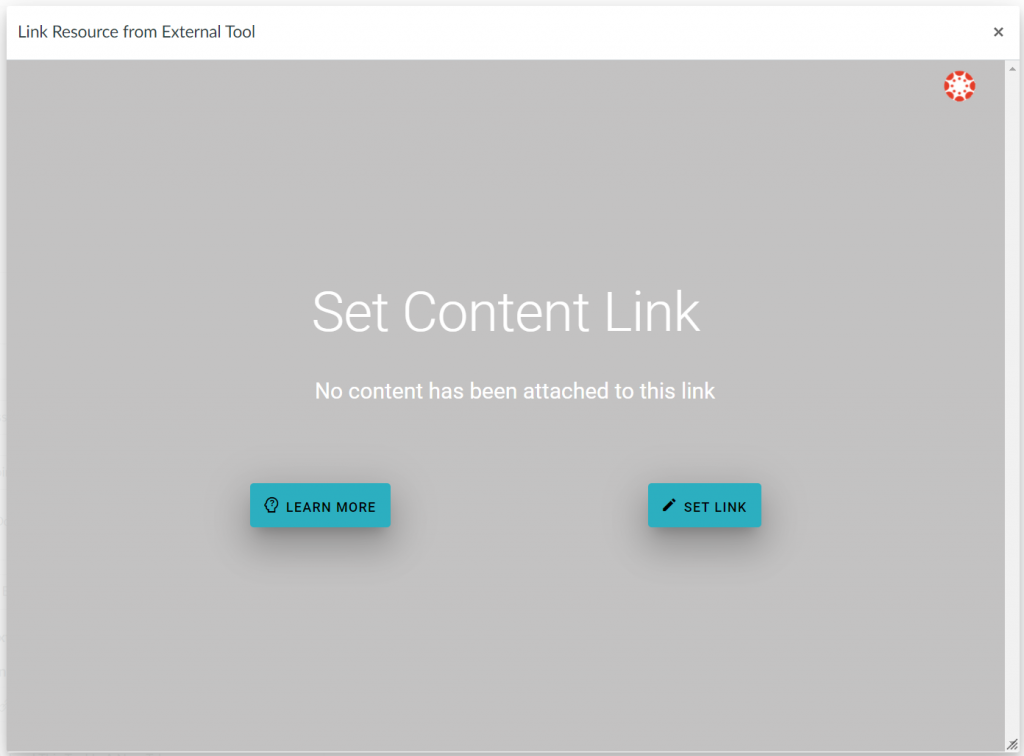
5. Click the Set Link button on the gray screen.
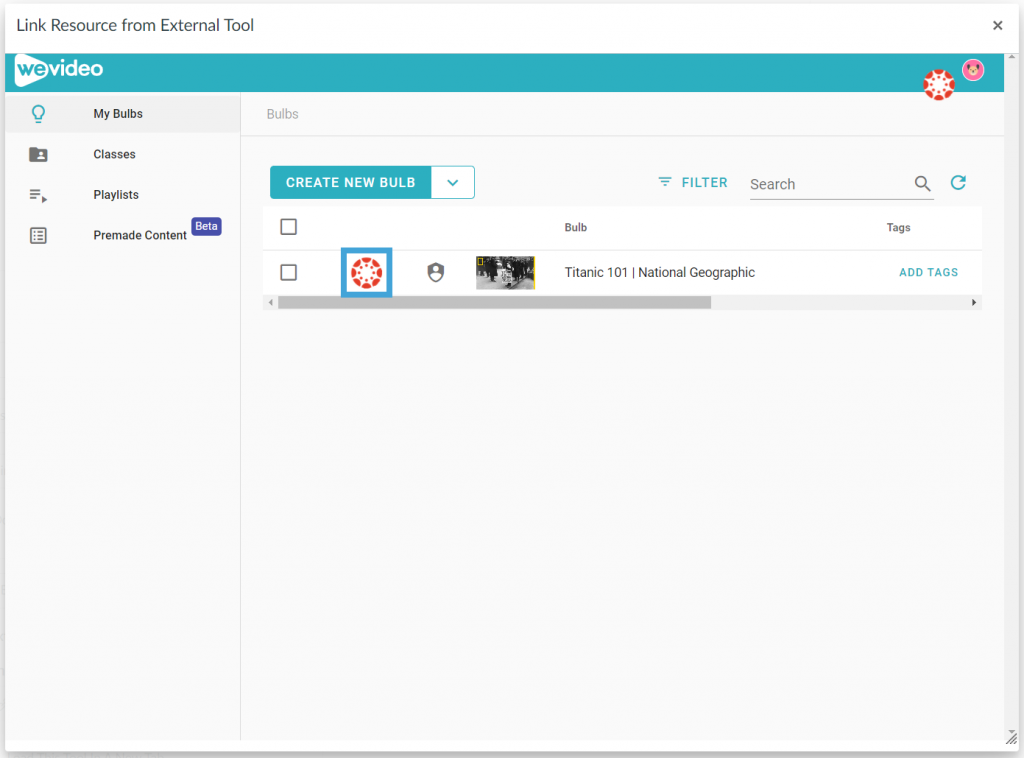
6. Click on the Canvas icon in front of the desired interactive video or playlist and click Link to assign it.
- If you do not have an interactive video in your account yet, please follow the steps in this article to create your first interactive video.
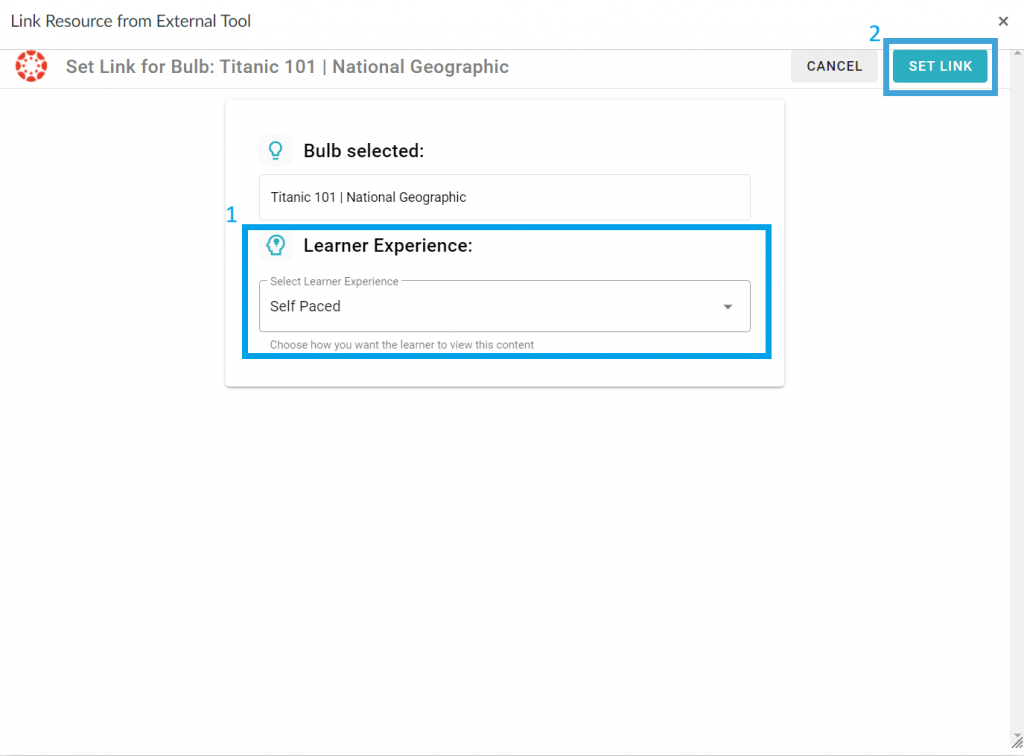
7. Select the learner experience to be Self Paced or Live Broadcast, then click Set Link.
8. Click Select to complete the process.
Adjust the grading and due date for the assignment in Canvas. Please note that if you would like to have the grades synced, the points for the assignment in Canvas must be greater than 0.
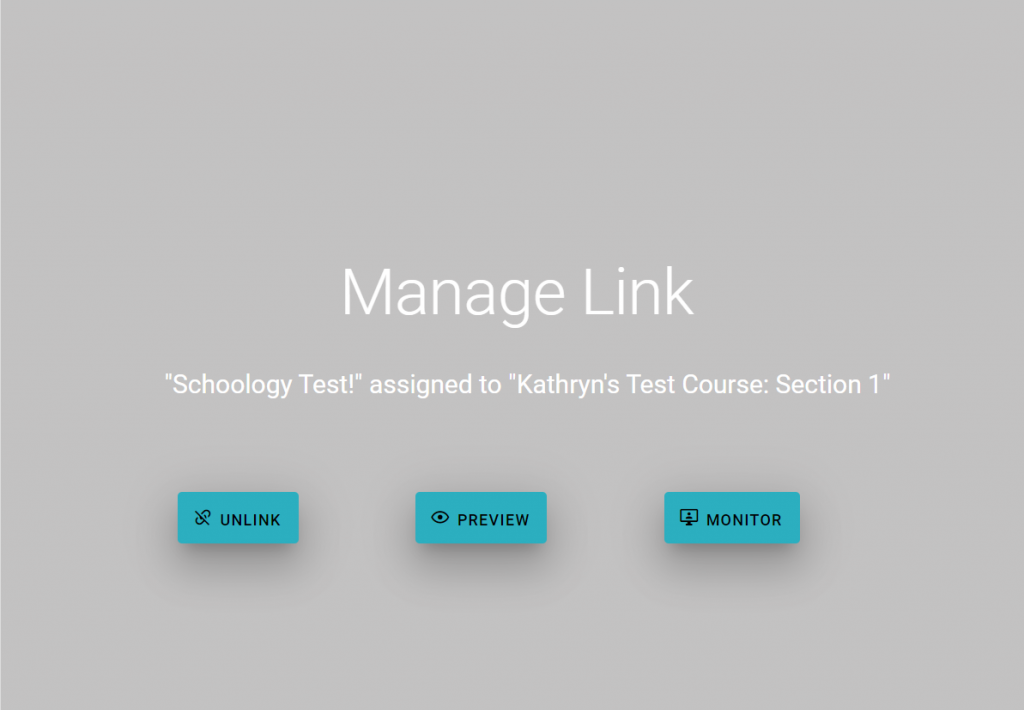
After the content is linked, you will see the following window when launching the assignment as an instructor. There will be three options:
- Unlink: unlink the content from this assignment so you can assign it to another assignment in this class if needed. Once the content is unlinked, the learners’ grades will be archived and not visible from the monitor page. They will need to complete the activity again in the new assignment to gain their grades.
- Preview: Preview the content that is linked to this assignment.
- Monitor: Open the monitor page for this assignment for you to review and adjust learners’ grades. Please see the next section for more information.
Monitor Learners’ Grades from Canvas
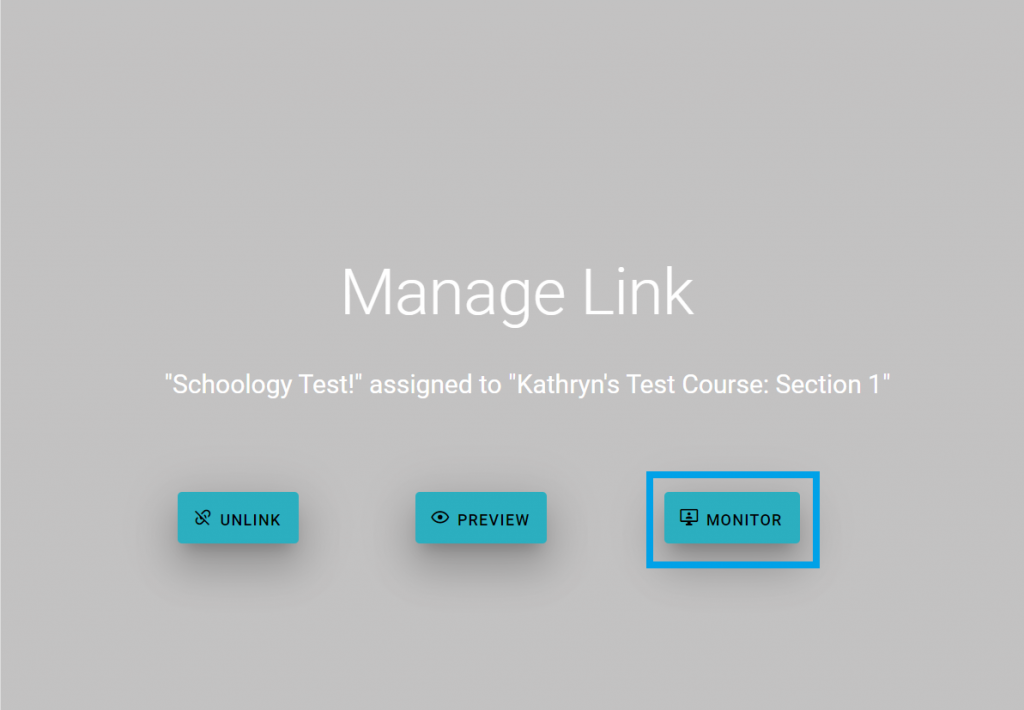
Click the Monitor button on the gray window to launch the monitor page.
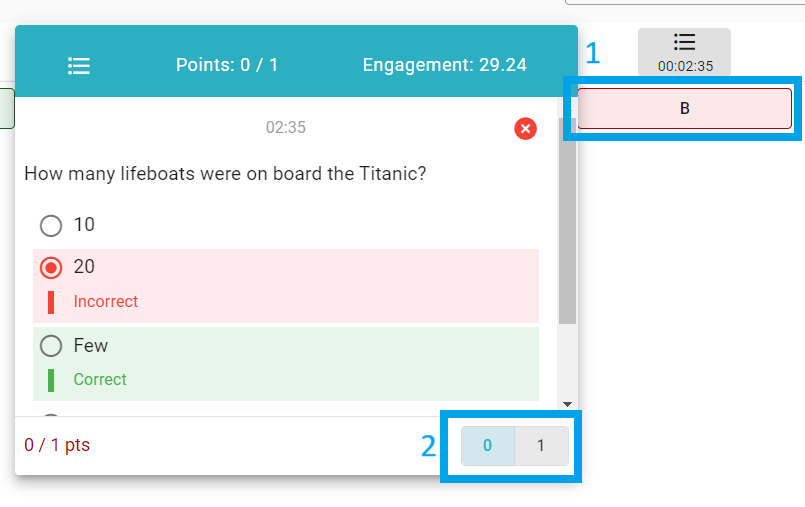
On the monitor page, you can see learners’ names, responses to each question, and their grades.

If you need to update learners’ grades or provide points to manually graded questions, click the response and assign points to it.
After grading, please ensure that you click the Sync Grades button at the top to sync the most updated grades to the Canvas grade book.

For additional information refer to the WeVideo – ‘How do I assign Interactivity content to Canvas?’ guide
New RCE

WeVideo Support and Help
WeVideo has support services for your questions or problems.
- Stephanie Gates
WeVideo Senior Customer Success Manager
stephanie@wevideo.com - WeVideo Help Desk Support – On the choose a team drop down box, select ‘Support‘ and submit your questions.