
MiraCosta Online Ed Tips: End of spring 2026
Dear MiraCosta Colleagues,
Some Online Ed reminders and opportunities as you wrap up spring and (perhaps) start thinking about what’s next. Hope to see you at commencement!
Canvas End of Term
After June 6, your spring Canvas classes go into read-only mode for you and your students, and move from the Canvas Dashboard to the Past Enrollments area of Canvas (select Courses at left in Canvas, then All Courses to see Past Enrollment courses). If you wish to remove access to any of your course materials for your current students beyond this semester, you need to do so by June 6. Review our Canvas end-of-term guide for details. It also discusses what you need to do if you have any students who will receive Incomplete grades, as well as what to do if you wish to close course access sooner than June 6. If you’d like help with any semester wrap-up tasks, you can consult with our Instructional Designer, Nadia Khan (click the link to schedule a time).
Support for Summer/Fall Class Prep
- Our tic.miracosta.edu has many great resources including workshop recordings, tutorials, examples, and guidelines for online teaching.
- For one-to-one support in your course design and teaching connect with Instructional Designer Nadia Khan – she’s around all summer. Or, if you’re working on classes that are ZTC (Zero Textbook Cost), connect with Instructional Designer Stephanie Kelley.
- For those teaching summer or fall classes that are Zero- or Low-Textbook Cost, please update your course section ZTC/LTC designations in SURF if you haven’t done so yet.
Summer Professional Learning Opportunities
- The Online Teaching Conference is in Anaheim, June 23-25. Contact me if you’re interested in support for your registration.
- There are some great @ONE online teaching courses – all free, many independent self-paced options and some facilitated.
Happy final finals week!
– Jim
Jim Julius, Ed.D.
Faculty Coordinator, Online Education
Canvas End of Semester / Term
The following will help instructors understand how the end of semester is handled in Canvas, and how to update related Canvas course settings if necessary. By default, students who complete a class continue to have read-only access to the concluded class’s course materials, discussions, and grades. If you wish to restrict concluded class access, you must change the class settings before the end of the term, or get a Canvas administrator to help you after the end of the term.
Everything below applies to typical term-based Canvas classes. Canvas sandbox classes and Canvas shells used for organizations, departments, groups, etc. are not tied to any particular terms and thus remain available indefinitely.
Closing your Course
There is nothing you have to do to close your Canvas course; at the term end date (see below), your course will be set to Concluded status and moved onto the Past Enrollments course list for you and your students. By default you and your students will continue to have read-only access to the course.
Canvas Term End Dates
| Semester | Date | Time |
|---|---|---|
| Spring 2026 | June 8 | 12 am |
| Summer 2026 | August 12 | 12 am |
| Fall 2026 | Dec 31 | 12 am |
Concluded Course Access
For both instructors and students, concluded courses can be found by clicking Courses in the main Canvas menu, then the All Courses link. Concluded courses are listed there under Past Enrollments. Concluded courses may not be moved back onto the Dashboard – they must be accessed in this way.
Instructors can perform the following actions with a concluded course
- Download grades to a CSV (Excel) file (Text instructions)
- Use as a source for copying into a new course (Text instructions)
- Export a course (Text instructions)
- Access material using visible navigation links (any links that were hidden from students will be hidden in concluded courses)
Instructors cannot perform the following actions within a concluded course (do these before the end of the term!)
- Edit course content
- Edit Grades
- View/download Analytics
- View/download Item Analysis within Quizzes
- Send a message to the class within Canvas
- Change class access settings
- Change class navigation
Students can perform the following actions by default within a concluded course
- View Grades
- View course content
- View Discussions and Assignments
- Send a message to the instructor
Students cannot perform the following actions within a concluded course
- View Quiz questions and answers
- Submit discussions, assignments, quizzes, and other course activities
Restricting Students from Viewing Some or All of a Completed Course
As described above, by default in Canvas, students have ongoing read-only access to course content in Canvas after the term ends. This can be a great feature, allowing students to review key learning resources from previous semesters. If, however, you wish to limit this access, follow one of the methods below before the end of the term. (If you need to make these changes to a course that is already concluded, contact Karen Turpin for assistance at [email protected])
Method 1: Hide Course Navigation menu links
If an instructor would like to limit access to major areas of course content, one method is to hide Navigation menu links. Note that if Navigation menu links are hidden, the instructor will also be unable to access them after the course concludes. This may be appropriate if you would like to leave Grades available to students, yet close off certain course content. The instructor may copy the course into another course to regain access to hidden menu items.
How to hide Course Navigation menu links
- Click Settings in the Canvas course menu
- Click Navigation in the tabs at the top.
- Drag and drop the menu items from the top (viewable) area to the bottom (hidden) area or click the gear icon to the right of the menu item and select disable.
- Click the Save button.
Method 2: Hide select course content
For more fine-grained control, certain course content such as files, pages, modules, or module items (but not assignments or discussions where students have participated) may be unpublished. As with hidden Navigation menu links, unpublished items are also inaccessible to the instructor after the course concludes.
If you wish to hide course items where students have participated, such as discussions or assignments, you cannot unpublish those. But there is a trick: simply set the availability date to sometime far in the future.
These options may be useful if you want students to be able to access most course content, but have select content that you prefer not to be accessed/shared in the future. The instructor may copy the course into a current course to be able to revisit/reuse hidden content.
Method 3: Restrict students from accessing entire course after term end date
The term end date is the final date in the current semester as listed in the table above. If an instructor would prefer the entire course and its course materials not be visible to students after the term end date:
- Click Settings in the Canvas course menu.
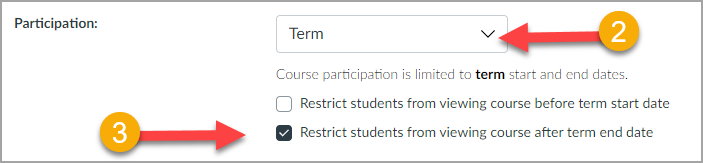
- For Participation: Select Term (this should be selected by default)
3. Select the checkbox for ‘Restrict students from viewing course after term end date‘.
5. Click the Update Course Details button at the bottom of the settings page.
This option will completely remove the course from the student’s view in Past Enrollments after the end term date passes. Students will not see the course and will have no access to course materials or grades. Instructors will continue to be able to access the course in Past Enrollments.
Resolving Incompletes
If you have assigned a student an incomplete ‘I‘ grade for the semester, contact Karen Turpin at [email protected] or as soon as the paperwork is complete with Admissions and Records. Karen will create a new Canvas course section based on the original course. This new section will allow the student access to the course with the ability to submit work, and will give you access to grade the student’s work, for the time allowable by the Office of Admissions and Records.
Working with Concluded Courses to Build New Courses
As noted above, you may always export a concluded course for import back into Canvas (Text instructions), or use a concluded course as the source for copying into a new course (Text instructions). If you wish to update the content of a concluded course for use in the future, but you do not have a current term course in which to do that, you may wish to request a Sandbox course to copy into and work with, since you cannot edit a concluded course directly.
Teaching a short course and/or need to close your course prior to the official term end date?
You can manually end your course by updating the course end date. This will disable the ability for students to submit any more work, and, if you select the setting enabling students to view the course after the end date, will move the course off of the students’ Canvas dashboard and into the Past Enrollments area. If you do not enable that access for students, the course will disappear from their Canvas altogether.
To change the Course Start and/or End Date
- Click Settings in the Canvas course menu.
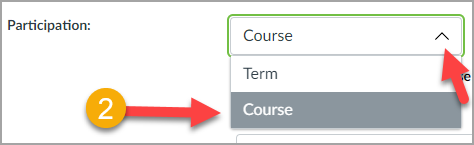
2. For Participation: Select Course
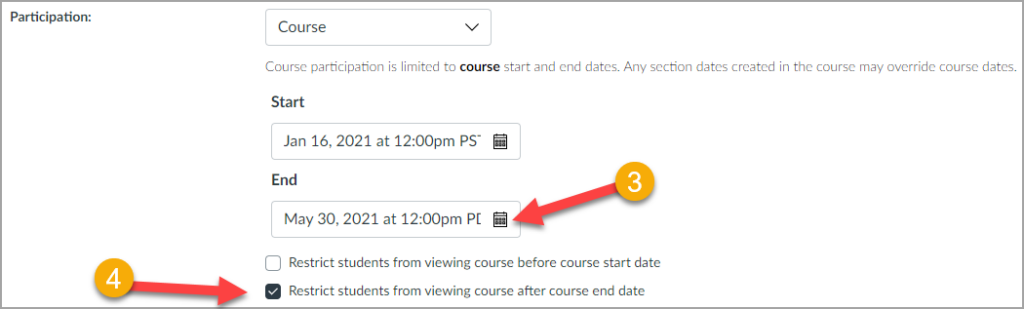
3. Change the Course Start and End Dates to reflect when you want students to have full access to the course.
4. If desired, select the checkboxes for ‘Restrict students from viewing course before course start date’ and/or ‘Restrict students from viewing course after the course end date’.
In the example below, students will not be able to participate in the course, even if it is published, until Jan 16 at 12 pm. The students will no longer be able to participate in the course after May 30 at 12 pm and the course will not be available to students for viewing.
5. Click the Update Course Details button.
Online and OER News for MiraCosta – May 2026
Hello, MiraCosta colleagues!
As we near the spring finish line, a couple quick reminders/opportunities. And, further below, some May ASCCC OERI events to consider.
Summer and Fall Classes are in SURF and Canvas
- Course sections assigned to you in SURF for summer and fall now have shells available for you to work with in Canvas (select Courses on the left, then All Courses to see upcoming classes that aren’t yet on your dashboard).
- If any of your fall (or summer) course sections are Zero Textbook Cost (ZTC) or Low Textbook Cost (<=$40), you should designate them as such in SURF following directions here, so that the classes will have the appropriate logo in SURF. And don’t forget to inform the bookstore of your course material details, even if you are using zero-cost resources.
Professional Learning Opportunities related to teaching online
- May 4-6: the free online Peralta Online Equity Conference – register to receive email updates and access to recorded sessions!
- May 5–14: The free online Perusall Exchange conference, “How to Assess Student Learning in the Age of AI,” includes some great speakers and an opportunity to learn more about the Perusall social annotation tool, which we have available to use in Canvas.
- May 21: The CCC Accessibility Center has a free Annual Workshop with sessions throughout the day. One registration allows you to attend any sessions.
- June 23-25: The CCC Online Teaching Conference is in Anaheim. If you would like support to attend, let me know! Early bird registration ends tomorrow, April 28. Online Ed can cover conference registration but likely not hotel or other travel expenses.
- Summer facilitated and self-paced @ONE online teaching courses are free! (Be sure to click through the catalog to see all your options.) Enroll now in a facilitated class before they fill up!
- July 29-31 The Cal OER conference is online. The call for proposals is open through May 18.
Please let me know how I can help with your online, ZTC, and OER work!
– Jim Julius
Faculty Coordinator, Online Education