

DesignPLUS for Canvas

DesignPlus Flex Workshop Recordings
- Session 4: The Multi-tool Overview/Module Builder (Zoom Recording 27 minutes) – 3/19/2026 workshop by Nadia Khan. (Studio Recording, 27 minutes)
- Session 3: DesignPLUS Sidebar (Zoom Recording 28 minutes) – 3/6/2026 workshop by Nadia Khan. (Studio Recording 28 minutes)
- Session 2: QuickStart Wizard Overview (Zoom Recording 28 minutes) – 2/19/2026 workshop by Nadia Khan. (Studio Recording 28 minutes)
- Session 1 – DesignPLUS Tools Overview (Zoom Recording 37 minutes) – 2/6/2026 workshop by Nadia Khan. (Studio Recording 37 minutes)
- DesignPLUS: Train, Play, and Create in Canvas ( Zoom Recording, 39 minutes) – 1/13/2026 workshop by Nadia Khan, Stephanie Kelley, & Karen Turpin. (Studio Recording, 39 minutes)
- Ready to Glow Up Your Canvas Classes? Get to Know DesignPlus! ( Zoom Recording, 53 minutes) – 1/12/2026 workshop by Jim Julius, Stephanie Kelley, Nadia Khan, Michelle Muldowney from DesignPlus. (Studio Recording, 53 minutes)
DesignPLUS is a user-friendly Canvas plug-in that helps you build polished, engaging, and accessible courses efficiently. DesignPLUS is licensed for all faculty at MiraCosta College using Canvas.
DesignPLUS includes four primary tools:
- Sidebar – a suite of rich content editor tools that help you create organized, accessible, engaging, and visually polished content in Canvas with ease.
- QuickStart Wizard – design tools available when you are editing new content in Canvas (a new page, assignment, discussion, etc) to quickly add visual design elements or adopt existing templates.
- Cidi Labs Multi-Tool – a time-saving tool that lets you quickly set up an engaging home page and create accessible templates for reuse across Canvas. It also can help you quickly build repeatable, consistent module structures. You can also adjust due dates and delay announcements using this tool.
- Upload/Embed Image Tool – a tool that enables you to discover, add, edit, and place course images in Canvas
DesignPLUS Sidebar
When you are editing Canvas content, select the sidebar icon at top right to launch the Sidebar tool, which will then appear on the right. The Sidebar tool includes many enhancements to the Rich Content Editor in Canvas, enabling you to easily add a variety of attractive and engaging content elements.
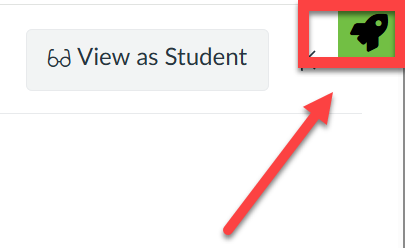
Getting Started with the Sidebar
Learn more about the DesignPLUS Sidebar (Tap to open a list of resources).
DesignPlus Accessibility Tools
DesignPLUS QuickStart Wizard
The QuickStart Wizard button appears when you open a new page, assignment, or syllabus for editing. Activating the Wizard gives you access to templates for the entire page, or pre-defined content blocks of different types to help you customize the page.
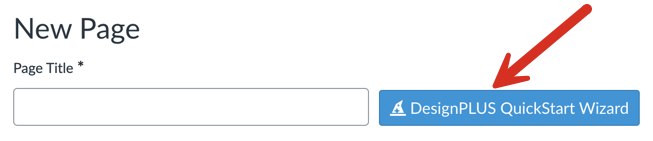
Getting Started with the QuickStart Wizard

Cidi Labs Multi-Tool
The Cidi Labs Multi-Tool shows up in the left course navigation menu of your Canvas course. You will be asked to authorize Cidi Labs to access your Canvas account. Once the Multi-Tool is set up, you can select from a variety of tools to help rapidly develop and update your courses. Watch the Multi-Tool orientation video to learn more about what it can do for you.
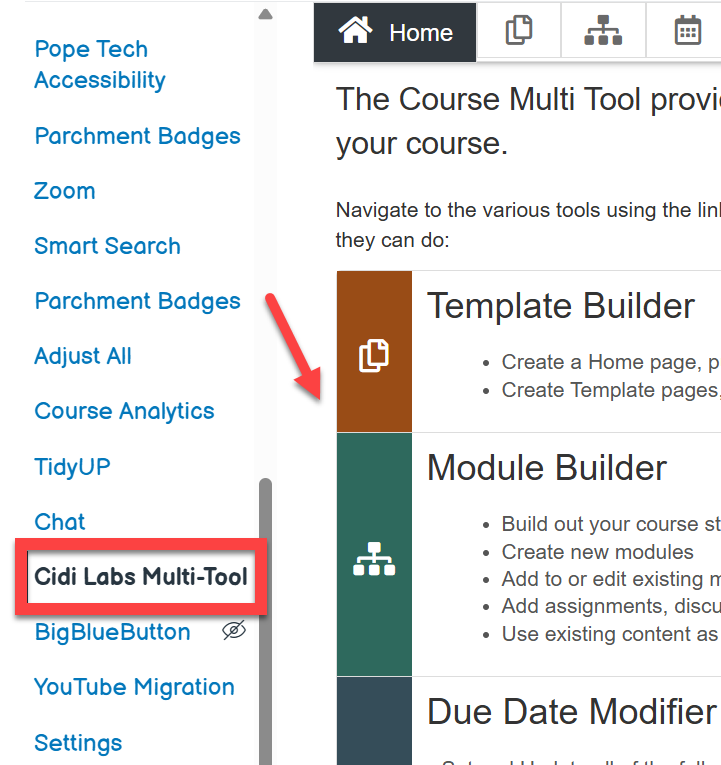
Getting Started with the Multi-tool
To learn more, see Multi-Tool FAQs.
DesignPLUS Upload/Embed Image Tool
This tool enables you to manage course images directly in Canvas. Upload, crop, resize, and embed images anywhere in your course, or quickly add free, high-quality images from Pexels and Unsplash. To access the Upload/Embed Image (U/EI) tool, go to apps through the Rich Content Editor (RCE). The first time you access the tool, you will be asked to authorize Cidilabs to access Canvas so this tool is available for you. Watch the Upload/Embed Image orientation video to learn how this tool works.
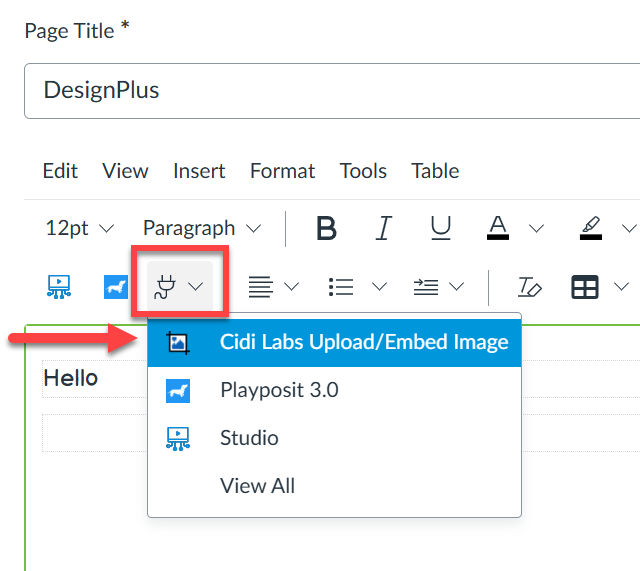
Getting Started with the Upload/Embed Image Tool
To learn more, see Benefits of using the Upload/Embed Tool or Adding the Upload/Embed (U/EI) Tool to the Rich Content Editor (RCE)
Additional DesignPLUS Support
DesignPLUS Customer Support: support@cidilabs.com
DesignPLUS Knowledge Base and FAQs
DesignPLUS Library of Designs and Templates
For support or training, contact instructional designer, Nadia Khan: nkhan@miracosta.edu