
YouTube Migration Tool in Canvas

For a distraction-free, seamless learning experience, you can migrate embedded YouTube videos in Canvas into Studio, whether they were added with embed code or through the YouTube LTI.

In September 2025, Canvas Studio implemented the YouTube Player for Education. Starting September 22, 2025 any existing or new YouTube videos added to Canvas may display ads. To avoid this you can migrate the videos manually to Canvas Studio or use the YouTube Migration tool in Canvas. The YouTube Migration tool helps teachers identify videos in their course that may display ads.

What happens when you migrate YouTube videos into Studio?

  • No ads or pop-ups will appear during playback.
  • Overlays (like recommendations, channel info, or “watch later” buttons) are removed.
  • You gain Studio tools, including analytics to see how students watch your videos.
  • Captions are preserved (only for videos with ‘public’ visibility).

Migration options

YouTube Migration Tool

Watch this video to learn how to use the Migration Tool in Canvas to migrate any YouTube videos in your course.

Scan Embedded YouTube Videos

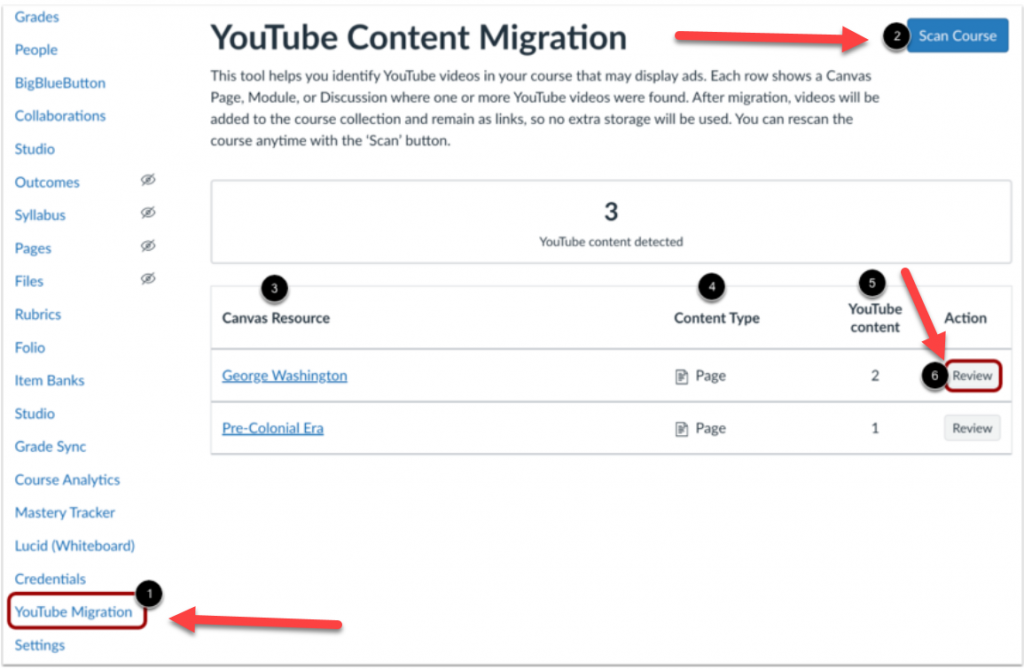
You can use the migration tool via the Course Navigation Menu. It is only visible to teachers and appears at the bottom of the course navigation menu on the left.

In Course Navigation, click the YouTube Migration link [1]. To filter embedded YouTube videos, click the Scan Course button [2].

A list displays the Canvas resources where the YouTube videos are embedded [3], the content type [4], and the number of YouTube content detected for each Canvas resource [5].

To migrate the videos into Studio content, click the Review button [6].

To learn more about the YouTube video migration tool visit the YouTube Player for Education FAQs page. In addition the Canvas resource on how to migrate embedded YouTube videos page provides step-by-step instructions and additional resources.

Important!

  • Only embedded videos and videos added through the YouTube LTI can be migrated through the Migration tool. YouTube links (which are external) cannot be migrated.
  • The migrated videos will only be visible in the Studio ‘Course Collection’; these will not be visible/available through the Studio user library. However, YouTube videos directly added to Studio will be available in the user library.
  • Migrated YouTube videos will NOT import in a different Canvas account when shared through Canvas Commons. These will, however, import within the MiraCosta instance of Canvas.
  • Captions will NOT automatically appear for migrated videos set to ‘unlisted’ visibility. Captions will need to be created or uploaded for such ‘unlisted’ YouTube videos. Caption will automatically appear for any migrated YouTube video set to ‘public’ visibility.

For more information or if you have questions, please contact Nadia Khan: nkhan@miracosta.edu

Downloading Zoom Recordings and more….

Beginning October 2, 2025, all Zoom recordings created between 2017 and July 31, 2024, will be automatically deleted in accordance with the California Community Colleges Chancellor’s Office directive. It is advised to download all Zoom recordings that you would like to keep prior to this date and hosting those Zoom recordings on an alternate media server.

Step 1: Download the Zoom recording files.

View a webinar by Jill Ringer that will walk you through the Zoom download process.

View a handout on how to download Zoom recordings.

Step 2: Upload your Zoom recording files to a streaming media service.

Canvas Studio

This option is integrated directly in Canvas. At this time we do not have any storage limits so this is the most ideal and probably easiest place to store your Zoom recordings. For future zoom recordings you can even have those recordings automatically upload to Canvas Studio.

Canvas Studio

Here are some guides that will walk you through the process of uploading video files & using Canvas Studio.

Zoom Connection to Canvas Studio

Canvas Studio supports an integration with Zoom that allows Zoom to automatically upload future recorded meetings into Studio. Here is how you can authorize the Studio Zoom integration in your Canvas Studio Settings.

Zoom Video Migration FAQs

How do I ensure that the video captions also migrate?

If downloading the video to your computer and saving it to One Drive, make sure to also save the .cc.vtt file and add it to the MP4 file.

Canvas Studio generates auto captions to all Zoom videos uploaded to its library. Be sure to review the captions for accuracy.

Who do I contact if I need help?

Got questions?

Contact the following:

ITS Helpdesk: (760) 795-6850

Jill Ringer from ITS: jringer@miracosta.edu

Karen Turpin: kturpin@miracosta.edu

Nadia Khan: nkhan@miracosta.edu

SensusAccess – Alternative Media Made Easy

Sensus Access Notices & Flex Workshops Recordings


Sensus Acess Logo

SensusAccess offers two ways for MiraCosta faculty, classified professionals, and students to convert all kinds of documents and files into alternative and more accessible formats:

  • A website in the portal (MiraCosta login required) that allows you to upload files including Word or PPT documents, scanned images, PDFs, or web pages and generate accessible alternative types of files and media, including PDF, audio, e-books, Braille, and large print. This helps meet accessibility standards and enhance inclusion by supporting preferences and needs of diverse users.
  • A Canvas integration that automatically enables conversion of files uploaded into Canvas into alternate file and media types.

Key Features

  • Automated conversion of files into a range of alternative media and file formats
  • Remediation of inaccessible documents such as image only PDFs into accessible formats

Sensus Access in Teaching and Learning

For faculty, Sensus Access offers an important pathway to one element of Universal Design for Learning – enabling students to access course materials in the format that works best for them. Some examples of how students are likely to benefit from Sensus Access:

  • Conversion of Canvas pages or documents shared in Canvas into MP3 files for listening rather than reading
  • Conversion of course materials into formats that can be viewed offline, if the student does not always have reliable Internet access
  • Conversion of course materials into eBook format for students who prefer use of an eBook reader (such as a Kindle)

Faculty may choose to proactively use Sensus Access to generate alternative formats of course materials. Faculty may also, or alternatively, wish to remind students about the availability of Sensus Access to them, empowering them to make their own decisions about how and when to use this tool. For example, when faculty create an introductory screencast guiding students through the Canvas navigation and organization of a course, simply adding a few moments to point out the Sensus Access function on a Canvas page, and describing what it can do, can be a quick way to raise student awareness and agency!

For more information on SensusAccess and its use check out the SensusAccess website and one-page Canvas LTI description.

1 2 3 4 6