

ADAPT: LibreTexts’ Free Homework System

ADAPT is a free and open online homework system from LibreTexts. Think of it as your all-in-one hub for creating engaging assessments. ADAPT solves a common open educational resource (OER) challenge by bringing different homework technologies (like H5P, WeBWorK, and iMathAS) under one roof. This gives you the freedom to mix and match from a vast library of existing questions to create engaging assignments for your students, without getting bogged down by technology.
Key Features
- Large, customizable question library
- Question types (can include interactives, simulations, 3D models, code):
- Canvas-like questions: multiple-choice, true/false, fill-in-the-blank, essays, matching, drop downs, categorization, ordering, hot spots
- Highlight table or text
- Drag and drop
- Sketcher (molecular structure building)
- Discuss-it (discussion board with audio, video, and/or text inputs)
- Learning trees (students start with a “root” problem and are offered branching pathways based on how they do)
- Grading options (auto, manual, feedback, apply late policies, multiple attempts, randomized order)
- View data on students engagement and performance to adjust teaching
Explore this sample ADAPT assignment to see some of the questions that can be built. You can view this video from LibreTexts (8:58 – 14:50) alongside the sample assignment to get detailed explanations of each question type.
How to Get Started with ADAPT
Step 1: Get Instructor Account
Register for a LibreOne Account (this gives you access to all of LibreTexts’ applications).
Step 2: Create Your First Course
Once you log in and click into ADAPT, your dashboard will be empty. Here is how you can create a course:
- Click “New Course”.
- Fill in Course Details.
- Check “Yes” for LMS.
- Click “Save”.


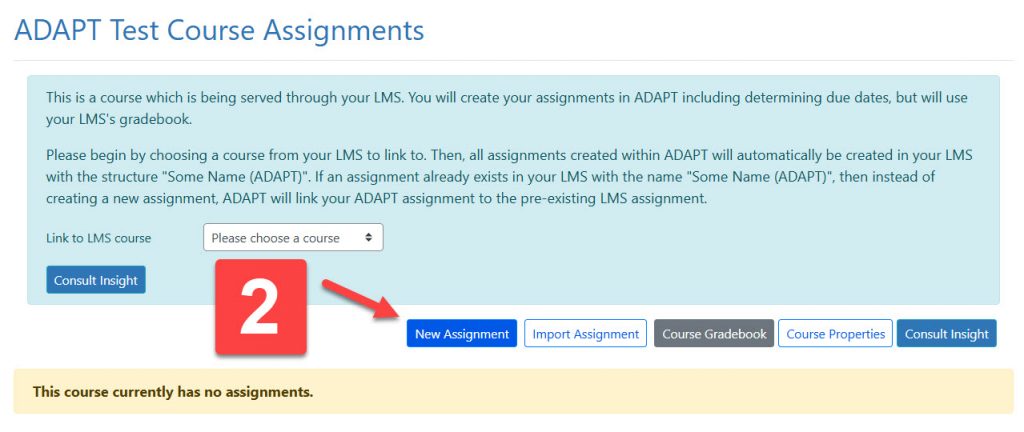
Step 3: Build an Assignment
- Click into the course that was just created.
- Click “New Assignment”.
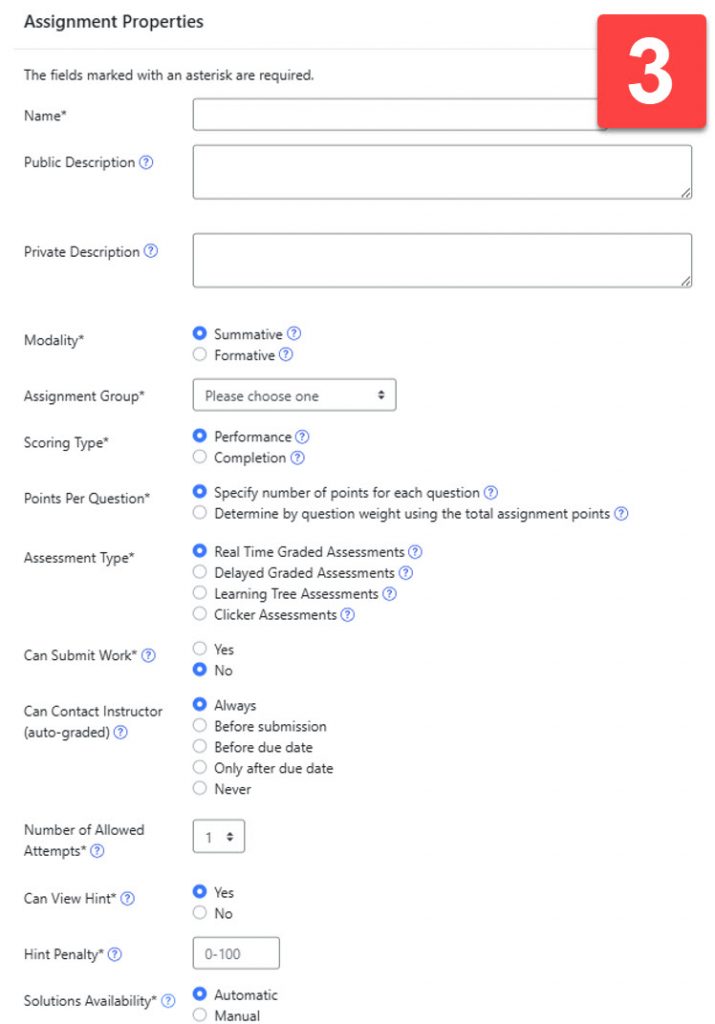
- Set assignment properties.
- Click “Save”.
Add Questions from Existing ADAPT Library
- Click on the assignment that you’d like to add questions to.
- Click “Add Questions”.
- Choose a question source
- “Search Questions” lets you filter questions by several different properties.
- “My Questions” takes you to a library of questions that you have adapted or created.
- “My Favorites” shows you questions that you have favorited.
- “My Courses” allows you to select questions from other courses that you have created.
- “Commons” contains questions for courses that have been curated by the ADAPT/LibreTexts team. They could be courses matching a specific textbook or ones geared towards a course/topic.
- “All Public Courses” shows you questions created and made publicly available by other ADAPT users.
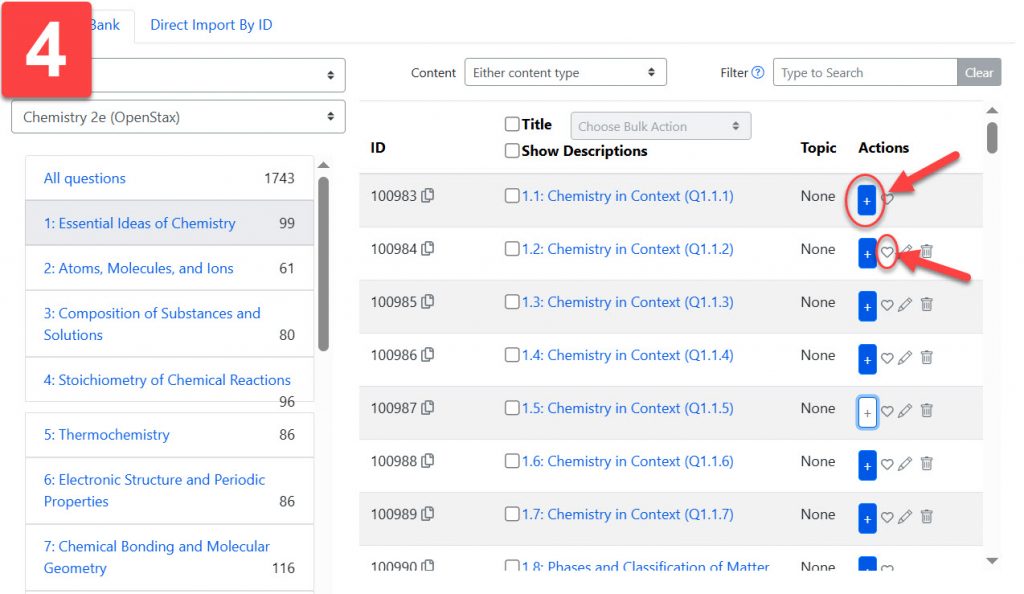
- Browse questions available to you. Clicking on a question will allow you to preview it in a pop-up window. Click the “+” icon to add them to your assignment. Clicking the heart icon will allow you to add questions to a Favorites folder to be used at a later time.


Create Own Questions
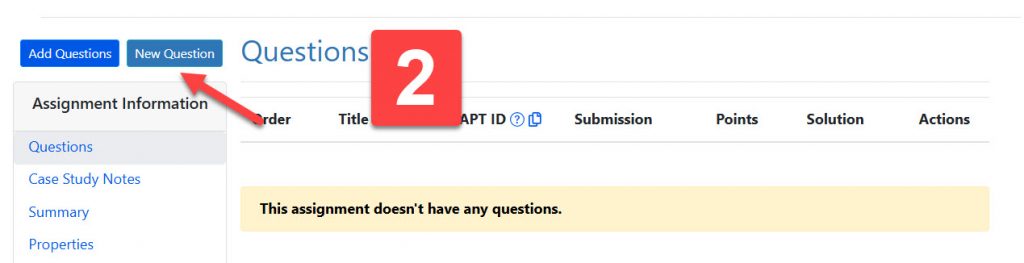
- Click on the assignment that you’d like to add questions to.
- Click “New Question”.
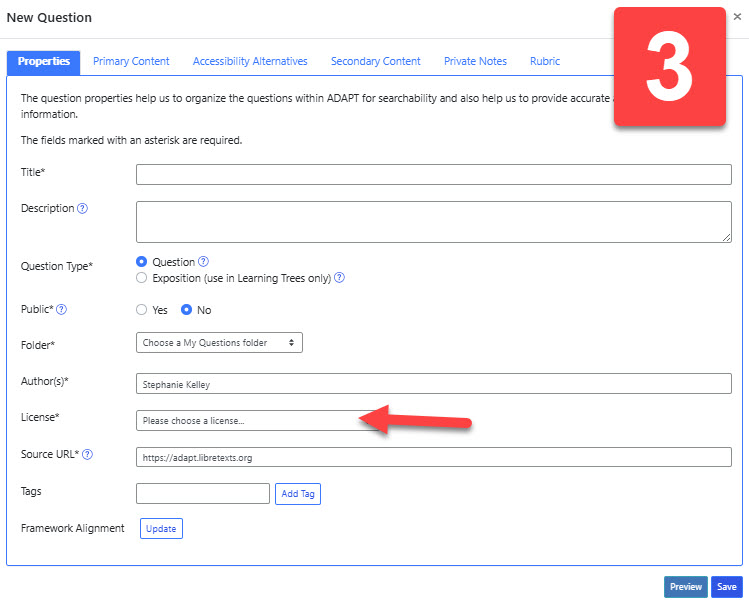
- Fill in “Question Properties”
- When selecting a License, an open one is preferable so others can benefit from your work!
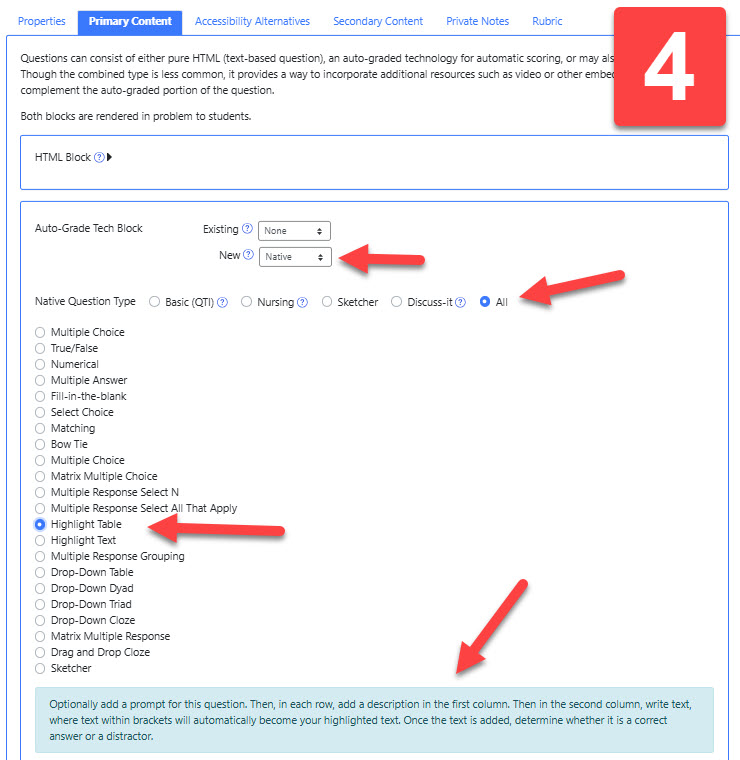
- Fill in “Primary Content”
- Use “HTML Block” if the question you are creating is purely text-based.
- If you would like to import H5P, WeBWorK, or iMathAS content that you have, go to the “Auto-Grade Tech Block” and “Existing” to make a selection.
- To build a question using ADAPT’s templates, go to “Auto-Grade Tech Block” and next to “New” select “Native”.
- Next to “Native Question Type” select “All” to see all the types of questions you can build. When you select a question type, the blue box below will explain what kind of interaction students will experience and how to format your question.
- Click “Save”.
Step 4: Share with Students in Your MCC Canvas Course
- In Canvas, create a new assignment that you would like to use ADAPT for.
- Next to “Submission Type,” select “External Tool” and then select “ADAPT”.
- Once to click “Save”, you will be directed to select the ADAPT course and assignment that you would like to link to the Canvas assignment. Click “Link Assignment” once you’ve made your selections.
- Alternatively, you can go to your ADAPT course and link it to a Canvas course. Doing this will automatically populate the Canvas course with all the assignments you’ve created in the linked ADAPT course.


Step 5: Grade an Assignment
By default, ADAPT courses are set for students to access and use them from within the LibreTexts website rather than from within Canvas. So, the course properties must be set to enable the ADAPT course to interact with Canvas Grades.
- Make sure your ADAPT course is set to interact with your Canvas gradebook.
- Click on the course properties icon next to the course.
- Check the box for “Yes” next to “LMS”. Click “Save”.
- Click the checkmark icon next to the assignment you would like to grade and this will take you to ADAPT’s grader.
- The grader will allow you to view and grade both open-ended and automatically graded submissions.
- You can grade by student or by question.
- Click “Submit” after each grade that you enter


ADAPT Training & Support Resources
- How to Use ADAPT’s Open Grader
- Creating a Learning Tree Assignment
- ADAPT Trainings from ASCCC’s Open Educational Resources Initiative:
- For technical assistance or any questions, contact LibreTexts’ Support Center