
Author: Nadia Khan
Accessibility Support Workshops and Training
The Online Ed team in collaboration with MiraCosta College’s Access Specialist bring the 2025-26 Accessibility Support Workshop series focusing on Accessibility and Universal Design for Learning. Recordings from this series are below.
Fall 2025
- The Big Picture in Accessibility- Federal, State, and Local policies on Accessibility (Zoom Recording- 27 mins) 9/10/2025 workshop by Aaron Holmes. Nadia Khan shared the connection between Universal Design for Learning and Accessibility. View slides
- Accessible Structure, Organization, and Links (Zoom Recording- 31 mins) 9/24/2025 workshop by Stephanie Kelley. View slides
- Images and Alt Text (Zoom Recording- 35 mins) 10/8/2025 workshop by Stephanie Kelley. View slides
- Color, Design, and Tables (Zoom Recording- 42 mins) 10/22/2025 workshop by Nadia Khan. View slides
- Video Accessibility – Intro to 3C Media Solutions for Captioning (Zoom Recording- 33 mins) 11/12/2025 workshop by Aaron Holmes.
- Captioning and Audio Descriptions (Zoom Recording- 27 mins) 12/10/2025 workshop by Nadia Khan. View slides
Spring 2026
- Accessibility First: Creating Inclusive Learning Spaces (Zoom Recording- 59 mins) 1/13/2026 Flex workshop panel discussion with curry mitchell, Kristi Reyes, Aaron Holmes, and Nadia Khan
- STEM Accessibility (Zoom Recording – 32 mins) 1/28/2026 workshop by Aaron Holmes. Recommended resources:
- Checking Accessibility in Canvas (Zoom Recording – 32 mins) 2/11/2026 workshop by Nadia Khan
- Assistive Tech in Canvas: Immersive Reader, Sensus Access, and specialized tools for SAS students (Zoom recording, 30 mins) 2/25/2026 workshop by Nadia Khan and Aaron Holmes
- Microsoft Office Accessibility (Zoom Recording – 52 mins) 3/11/2026 workshop by Stephanie Kelley
- Evaluating websites and other resources for accessibility (Zoom Recording – 33 mins) 3/25/2026 workshop by Aaron Holmes and Jim Julius
- Jim’s slides: Accessibility is a Shared Responsibility
- Chrome extensions for evaluating website accessibility: WAVE, SiteImprove
- TidyUP as a Partner in Canvas Accessibility (Zoom Recording – 30 mins) 4/8/2026 workshop by Stephanie Kelley
- AI Tools for Accessible Design and Remediation (Zoom Recording – 30 mins) 4/22/2026 workshop by Aaron Holmes and Nadia Khan, focusing primarily on Venngage and Playlab apps that can remediate content.
- MiraCosta Venngage sign-up directions
- Universal Access bot (Playlab) – converts various file types to accessible HTML, following principles of UDL
- DesignerBot (Playlab) – produces accessible HTML course design elements for adding to Canvas
- Accessibility Recap and Overview (Zoom Recording – 36 mins) 5/13/2026 workshop by Aaron Holmes, Jim Julius, Nadia Khan, and Stephanie Kelley. Broad overview of accessibility regulations and requirements, accessibility vs accommodation, Universal Design and UDL, accessibility checking and remediation tools in Canvas, accessibility checking and remediation tools in Microsoft Office, Sensus Access and AI apps for remediating existing files, and an announcement of an accessibility tool coming to the Google suite for MiraCostans.
YouTube Migration Tool in Canvas
For a distraction-free, seamless learning experience, you can migrate embedded YouTube videos in Canvas into Studio, whether they were added with embed code or through the YouTube LTI.
In September 2025, Canvas Studio implemented the YouTube Player for Education. Starting September 22, 2025 any existing or new YouTube videos added to Canvas may display ads. To avoid this you can migrate the videos manually to Canvas Studio or use the YouTube Migration tool in Canvas. The YouTube Migration tool helps teachers identify videos in their course that may display ads.
What happens when you migrate YouTube videos into Studio?
- No ads or pop-ups will appear during playback.
- Overlays (like recommendations, channel info, or “watch later” buttons) are removed.
- You gain Studio tools, including analytics to see how students watch your videos.
- Captions are preserved (only for videos with ‘public’ visibility).
Migration options
- Using the YouTube Migration Tool → videos go directly into Course Collections.
- Migrating manually → videos are saved to your Studio library.
YouTube Migration Tool
Watch this video to learn how to use the Migration Tool in Canvas to migrate any YouTube videos in your course.
Scan Embedded YouTube Videos
You can use the migration tool via the Course Navigation Menu. It is only visible to teachers and appears at the bottom of the course navigation menu on the left.
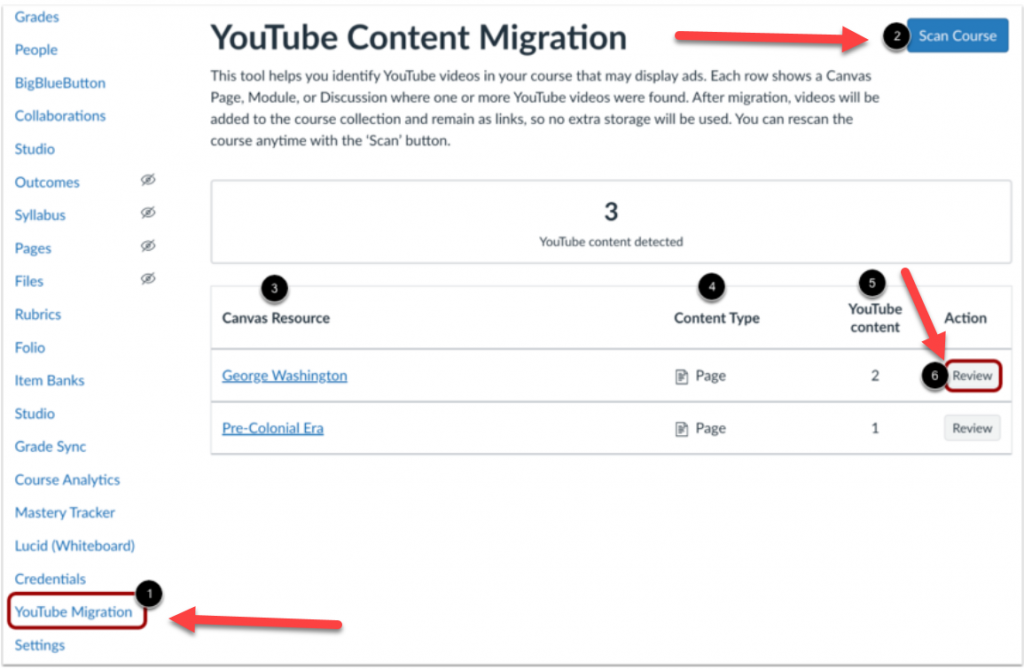
In Course Navigation, click the YouTube Migration link [1]. To filter embedded YouTube videos, click the Scan Course button [2].
A list displays the Canvas resources where the YouTube videos are embedded [3], the content type [4], and the number of YouTube content detected for each Canvas resource [5].
To migrate the videos into Studio content, click the Review button [6].
To learn more about the YouTube video migration tool visit the YouTube Player for Education FAQs page. In addition the Canvas resource on how to migrate embedded YouTube videos page provides step-by-step instructions and additional resources.
Important!
- Only embedded videos and videos added through the YouTube LTI can be migrated through the Migration tool. YouTube links (which are external) cannot be migrated.
- The migrated videos will only be visible in the Studio ‘Course Collection’; these will not be visible/available through the Studio user library. However, YouTube videos directly added to Studio will be available in the user library.
- Migrated YouTube videos will NOT import in a different Canvas account when shared through Canvas Commons. These will, however, import within the MiraCosta instance of Canvas.
- Captions will NOT automatically appear for migrated videos set to ‘unlisted’ visibility. Captions will need to be created or uploaded for such ‘unlisted’ YouTube videos. Caption will automatically appear for any migrated YouTube video set to ‘public’ visibility.
For more information or if you have questions, please contact Nadia Khan: [email protected]
Downloading Zoom Recordings and more….

Beginning October 2, 2025, all Zoom recordings created between 2017 and July 31, 2024, will be automatically deleted in accordance with the California Community Colleges Chancellor’s Office directive. It is advised to download all Zoom recordings that you would like to keep prior to this date and hosting those Zoom recordings on an alternate media server.
Step 1: Download the Zoom recording files.
View a webinar by Jill Ringer that will walk you through the Zoom download process.
- Flex ITS Open House Plus Zoom Recordings Walkthrough (Recording, 1 hours 2 minutes) – 8/12/2025 – workshop by Jill Ringer
View a handout on how to download Zoom recordings.
- Download Zoom Recordings to an MP4 Video File – PDF handout on how to download Zoom recordings from Zoom to a .mp4 file format.
Step 2: Upload your Zoom recording files to a streaming media service.
Canvas Studio
This option is integrated directly in Canvas. At this time we do not have any storage limits so this is the most ideal and probably easiest place to store your Zoom recordings. For future zoom recordings you can even have those recordings automatically upload to Canvas Studio.
- To access Canvas Studio go to: https://miracosta.instructure.com
- Click on the Studio icon on the main course navigation menu within Canvas.

Here are some guides that will walk you through the process of uploading video files & using Canvas Studio.
- How do I upload media files in my Canvas Studio account?
- How do I use Studio through the Rich Content Editor in Canvas?
- View All Canvas Studio Guides
- View the TIC Canvas Studio page
Zoom Connection to Canvas Studio
Canvas Studio supports an integration with Zoom that allows Zoom to automatically upload future recorded meetings into Studio. Here is how you can authorize the Studio Zoom integration in your Canvas Studio Settings.
Zoom Video Migration FAQs
How do I ensure that the video captions also migrate?
If downloading the video to your computer and saving it to One Drive, make sure to also save the .cc.vtt file and add it to the MP4 file.
Canvas Studio generates auto captions to all Zoom videos uploaded to its library. Be sure to review the captions for accuracy.
Who do I contact if I need help?
Got questions?
Contact the following:
ITS Helpdesk: (760) 795-6850
Jill Ringer from ITS: [email protected]
Karen Turpin: [email protected]
Nadia Khan: [email protected]